How to Buy Indonesian Stocks on Pluang
This document provides a step-by-step guide on how to purchase Indonesian stocks using the Pluang app, including prerequisites, procedural steps, and related FAQs.
18 Steps
Q: How do I buy Indonesian stocks on Pluang?
A: You can buy Indonesian stocks on Pluang in 2–3 minutes through the Indonesian Stocks menu in the app. Search for the stock ticker you want, enter the number of lots and price, then confirm your order. Purchases can only be made during IDX trading hours.
Before you start, make sure:
- Your Indonesian Asset Verification has been approved and your RDN (Customer Fund Account) is active
- Your RDN balance is sufficient to purchase the stocks you want (minimum 1 lot)
- It is within IDX trading hours: Monday–Thursday, Session 1 at 09:00–12:00 WIB, Session 2 at 13:30–15:49 WIB, and Friday, Session 1 at 09:00–11:30 WIB, Session 2 at 14:00–15:49 WIB
Steps:
- From the Pluang app homepage, tap the Explore Page, then tap ID & Stocks on the Explore Page to enter the IDX stock list page.
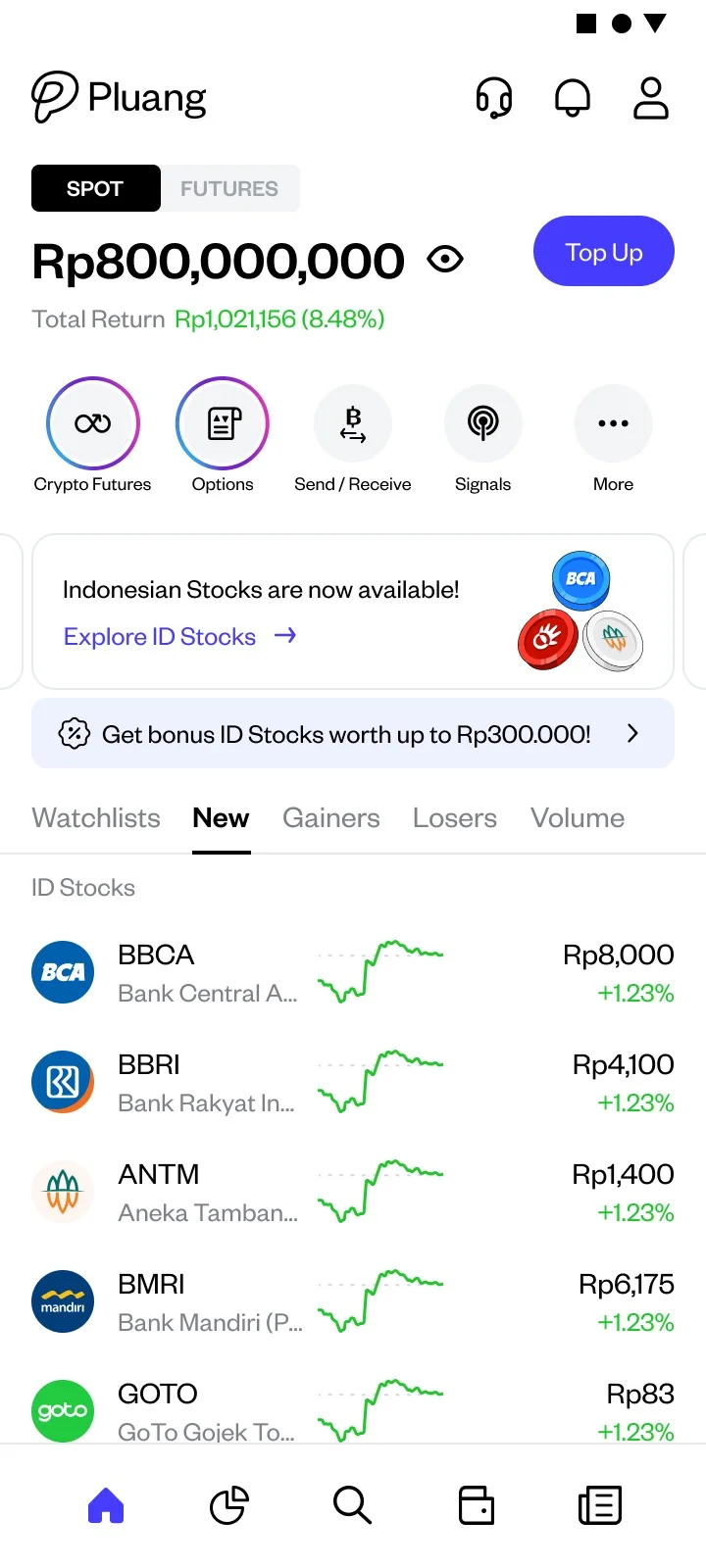
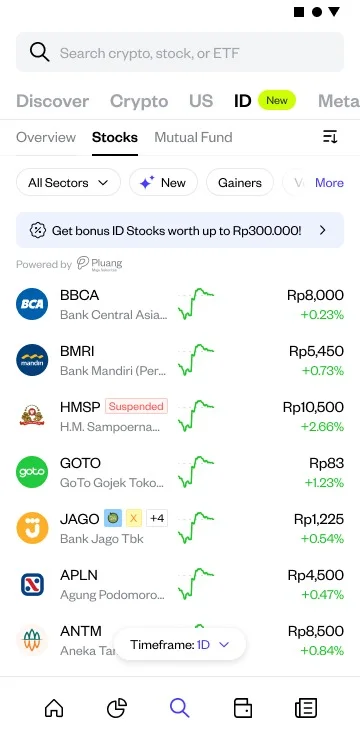
Search for the stock you want to buy. Use the search bar to find stocks by company name or ticker code (e.g., BBRI, TLKM, BBCA). Tap the stock you want to buy to open its detail page.
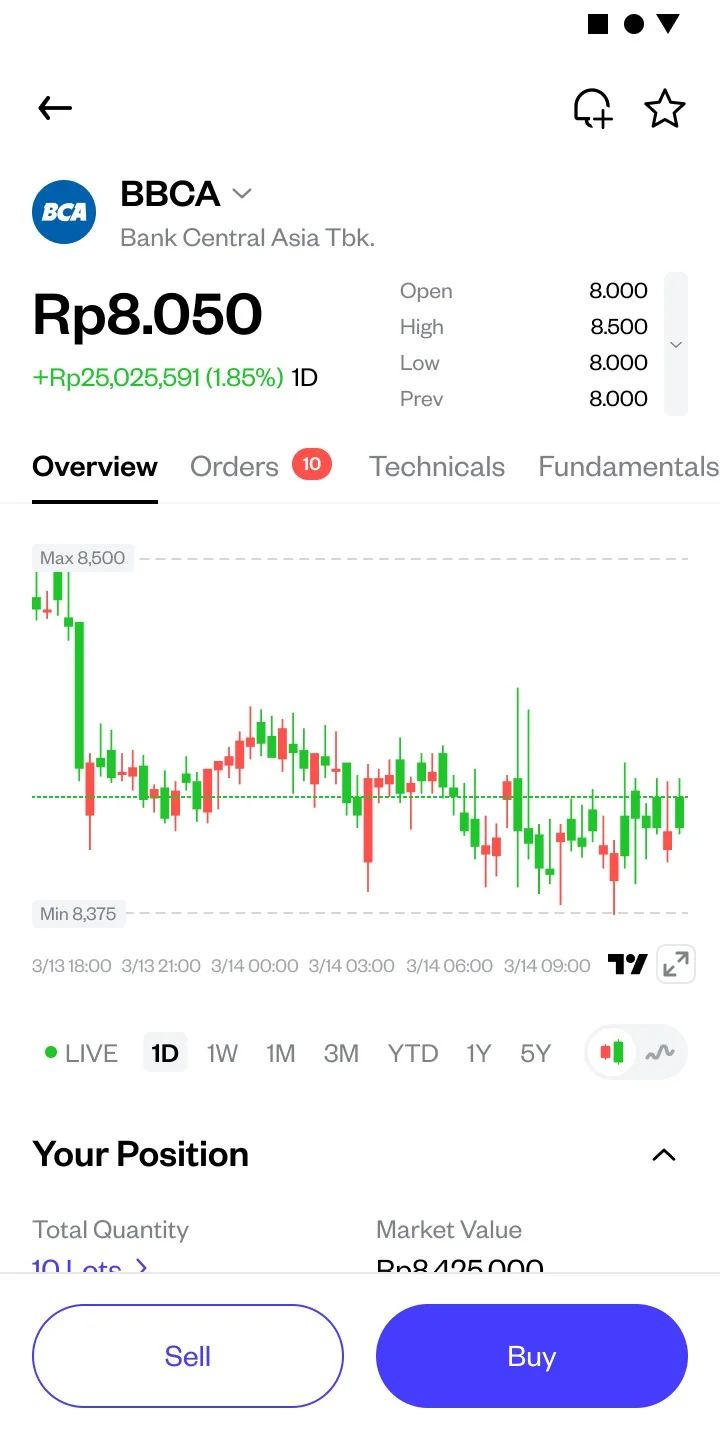
Tap the Buy button on the stock detail page to open the buy order form.
Enter the price and number of lots you want to buy. Note: 1 lot = 100 shares. The minimum purchase is 1 lot. Tap Review Order.
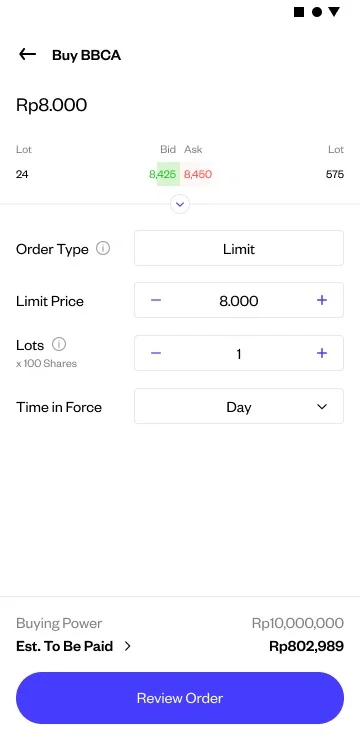
Review the order summary. Check your order details: stock name, number of lots, price per share, and estimated total transaction value including fees. Make sure everything is correct.
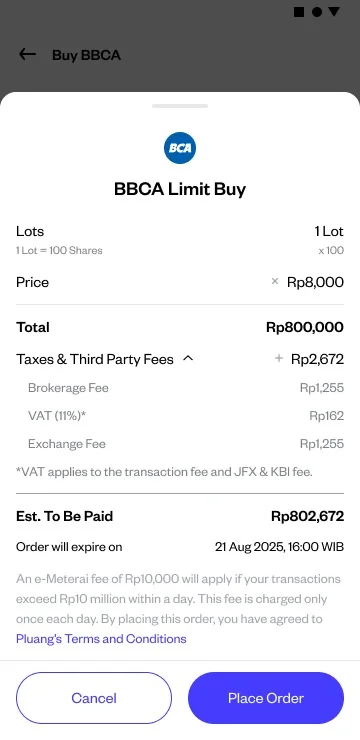
Confirm your order. Tap Place Order and enter your PIN or use biometric authentication to submit your buy order.
Success indicator: You will see a confirmation screen that your buy order has been successfully submitted to the exchange. You can monitor the order status on the portfolio page or on the stock detail page under the Order section. If the order is executed, the stocks will appear in your portfolio and your RDN balance will be reduced according to the transaction value.
Things to note:
- Stock purchases can only be made during IDX trading hours — orders submitted outside trading hours will not be executed
- For limit orders, the order will only be executed if there is a seller at your specified price — otherwise, the order will remain pending
- If e-stamp duty applies (total daily transaction > Rp10,000,000), a Rp10,000 fee will be automatically added
- Indonesian stock transactions on Pluang are subject to a 0% fee during the promo period. Learn more here
Related Mini Q&A:
Q: What is the minimum stock purchase on Pluang?
A: The minimum purchase is 1 lot (100 shares). There is no minimum rupiah amount — it depends on the stock price you are buying.
Q: When will the stocks I purchased appear in my portfolio?
A: Stocks will appear in your portfolio once the order is successfully executed on the exchange. However, the settlement process takes T+2 (2 business days after the transaction). Sale proceeds can only be withdrawn after this process is completed.
Q: Can I buy stocks outside trading hours?
A: No. You can place stock orders outside trading hours, but they will only be executed during IDX trading hours (Monday–Friday). Orders submitted outside trading hours will not be processed.
Q: How can I monitor my order status?
A: You can monitor your order status in the order history menu or in your portfolio in the Pluang app.
Q: What are the transaction fees for buying Indonesian stocks on Pluang?
A: None. Indonesian stock trading on Pluang is free from transaction fees and hidden fees. You only need to pay regulatory fees and taxes. Learn more about Pluang fees.
Q: What happens if my buy order is not executed?
A: If there is no seller at your specified price before market close, the order will be automatically canceled (expired).
Q: How do I cancel a sell order that has not been executed?
A: You can cancel a pending order through the order history menu in the Pluang app.
Q: How do I cancel a buy order that has not been executed?
A: You can cancel a pending order through the order history menu in the Pluang app.