How do I unfreeze my Pluang account?
You can unfreeze your Pluang account in about 3–5 minutes by logging in to the app, confirming an OTP sent to your registered phone number, then passing Face Match and Liveness Check. Once both checks pass, your account returns to active immediately.
Before you start, make sure:
- You are using the Pluang app — unfreezing is not available on the web platform
- Your registered phone number is active and reachable, so you can receive the OTP
- You are somewhere with good lighting and can see your face clearly for the selfie
- You have 3 verification attempts in a session — after that you need to contact Pluang Care yourself for assisted recovery, which is free
- You know that cashout and Crypto Send stay blocked for 24 hours after unfreezing, while everything else works immediately
Steps:
7 Steps
Open the Pluang app
You can use any device with the app installed — it does not have to be the one you froze from.
Enter your registered phone number and log in
Log in as you normally would with your registered number.
Review the frozen-account notice
A notice tells you the account is temporarily frozen and that you need to verify your identity to get back in.
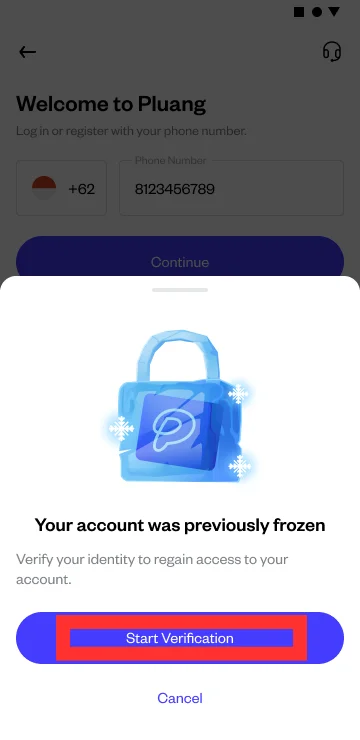
Tap to start verification
This begins the unfreeze flow. Cancelling instead leaves the account frozen with no access.
Enter the OTP sent to your phone
Pluang sends a one-time code to your registered phone number. Confirm it before identity verification begins.
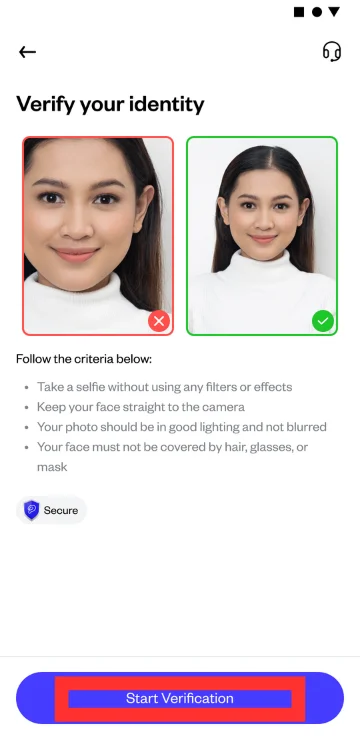
Take your selfie and complete the Liveness Check
Follow the on-screen prompts. Your photo is matched against the selfie record from your identity verification. If it comes back unmatched, blurry, or failing the quality check, you can retake it within your remaining attempts.
Wait for verification to complete
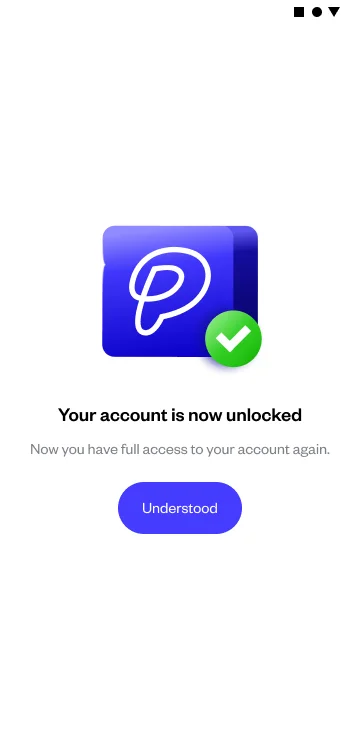
Both Face Match and Liveness Check must pass before the account is unfrozen. Once they do, a confirmation tells you the account is unlocked and active again and your portfolio is available, and a push notification and email confirm the 24-hour hold has started.