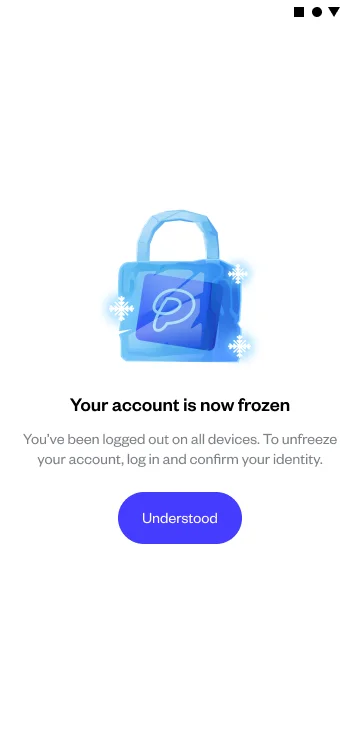
How do I freeze my Pluang account?
You can freeze your Pluang account in about a minute via Settings → Privacy and Security → Account Control → Freeze Account. You give a short reason, confirm with your 6-digit PIN and a 4-digit code sent to your registered phone number, and the account locks immediately with every device logged out.
Before you start, make sure:
- You are using the Pluang app — freezing is not available on the web platform
- You know your 6-digit PIN
- Your registered phone number is active and reachable, so you can receive the SMS code
- You understand that freezing logs you out on every device, including the one you are using
- Your open and pending orders will be cancelled when the freeze takes effect — you do not need to cancel anything yourself first
- You are ready to verify your identity to get back in: unfreezing is app-only and needs Face Match and Liveness Check
Steps:
8 Steps
Open Settings
From the Pluang app, go to your account settings.
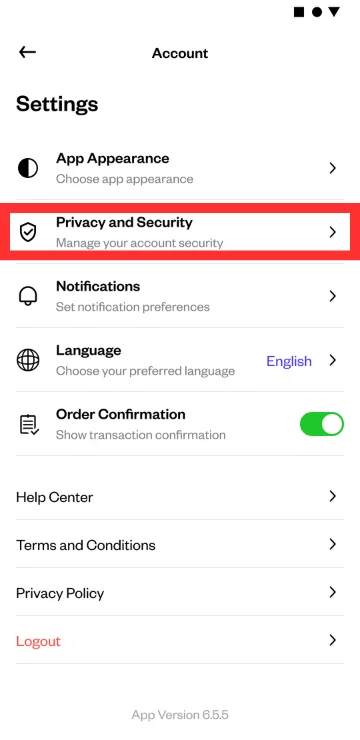
Select Privacy and Security
This page also holds your Authenticator, Face ID or fingerprint, Require PIN, Reset PIN, Forgot PIN, and the options to change your registered email and phone number.
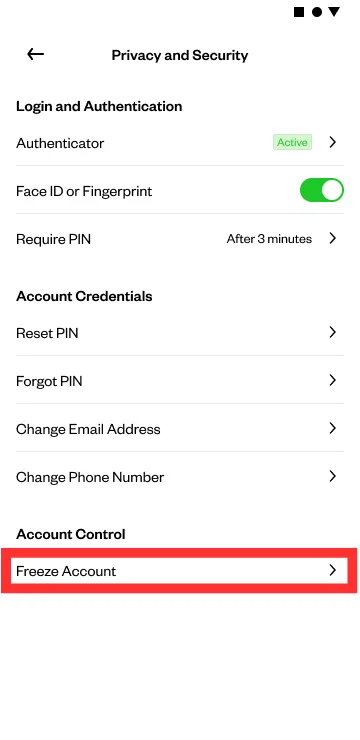
Tap Freeze Account
You will find this under Account Control, at the bottom of the page.
Review what freezing does
A page explains the impact before anything happens: you will be logged out on all devices, withdrawals and Crypto Send will be blocked until you unfreeze, and unfreezing will need identity verification.
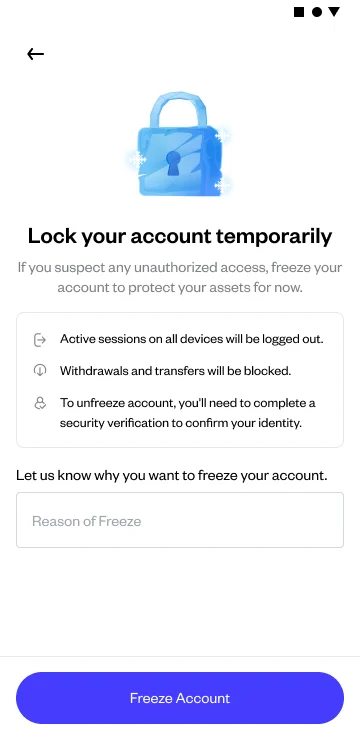
Enter your reason for freezing
The page asks you to say why you are freezing the account. Fill in the reason field before continuing.
Confirm to continue
Tap Freeze Account. Leaving this page without confirming changes nothing.
Enter your 6-digit PIN
The PIN step comes first. Pluang will never ask for your PIN outside the app — never share it with anyone.
Enter the 4-digit code sent to your phone
Pluang sends the code by SMS to your registered phone number. Once both the PIN and the code are accepted, a confirmation tells you the account is now frozen and that unfreezing will require identity verification. You are then logged out of the app, and a confirmation arrives by push notification and email.