How to Buy Crypto in Pluang
14 Steps
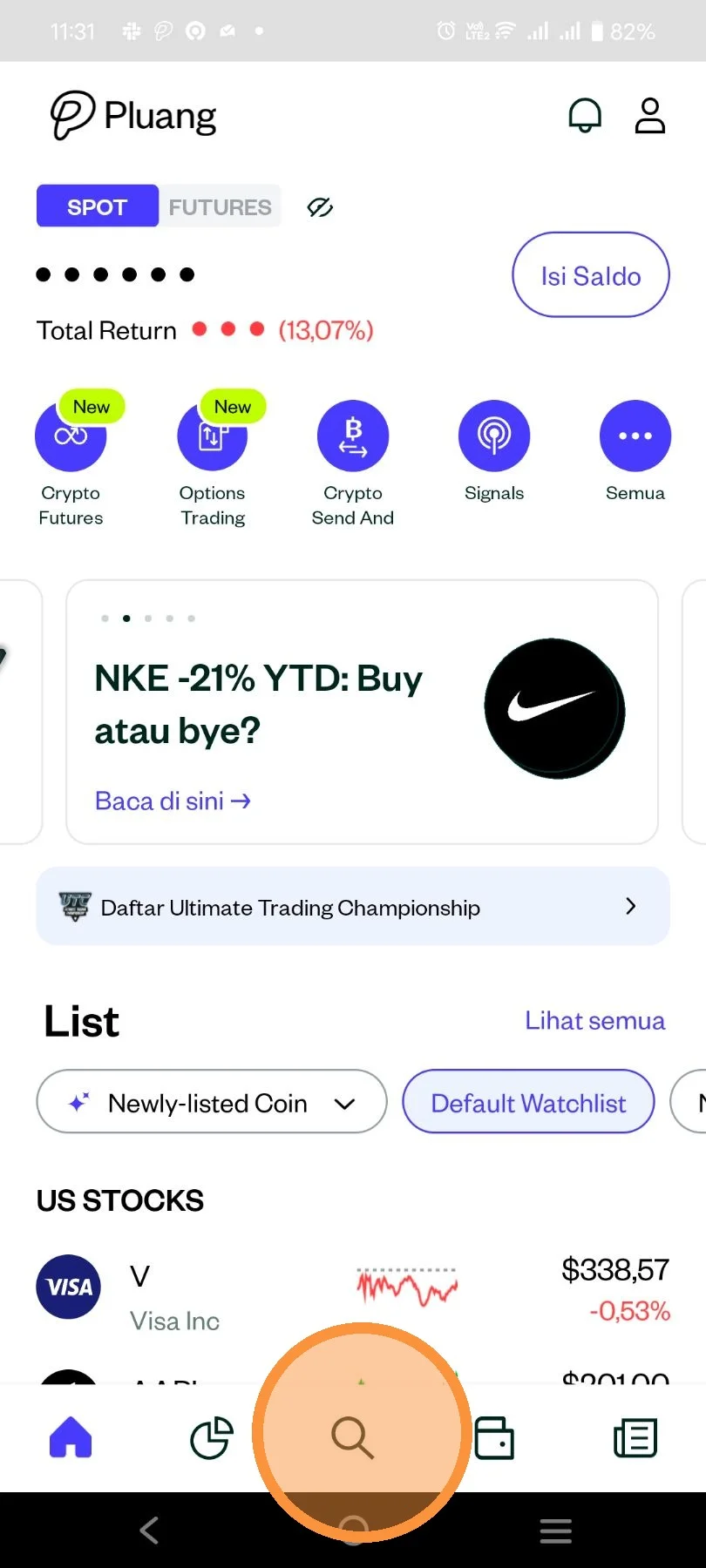
Open Pluang app, then go to "Explore" page
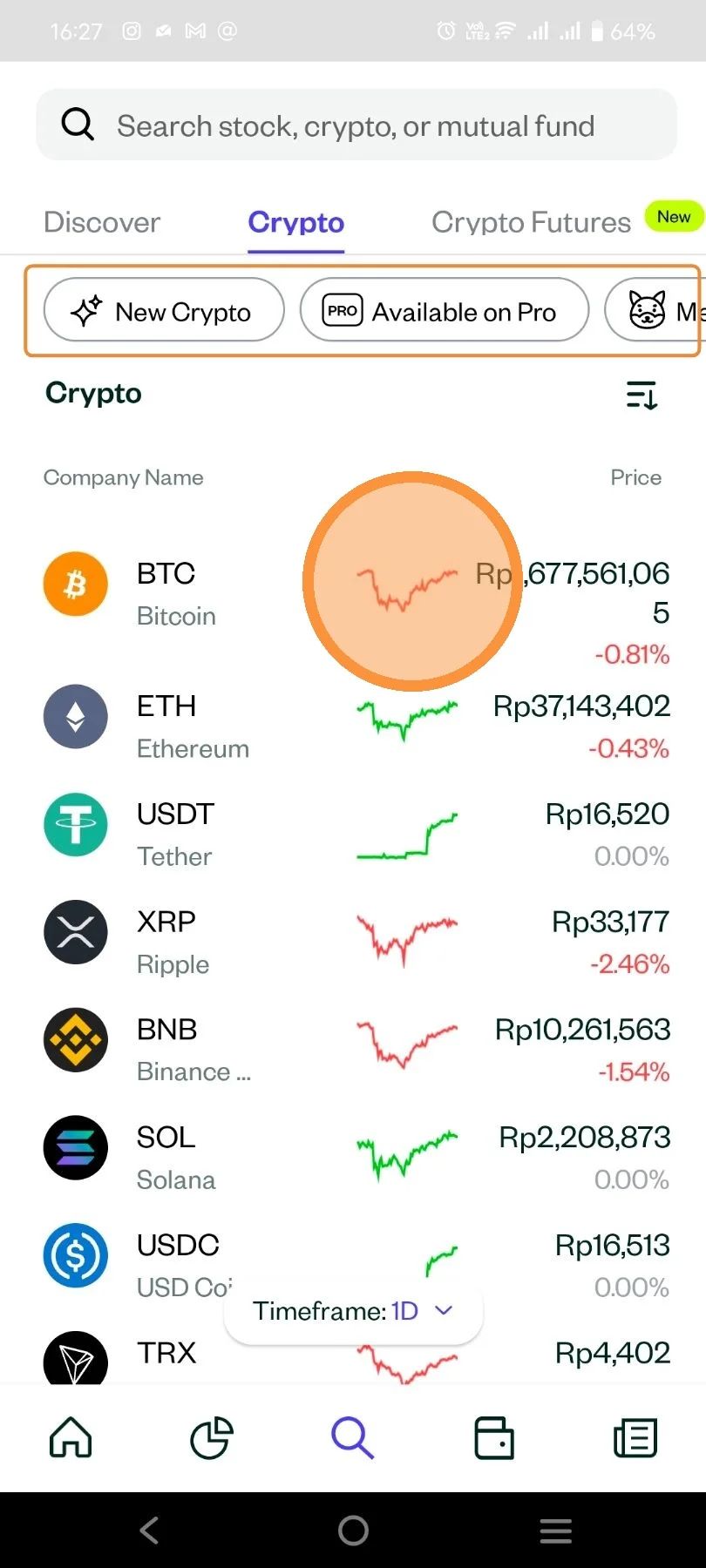
Click on the coin that you want to buy. You can also search the coin through the "Search" tab above.
You can also select from the crypto asset from default list or select from the the categories Pluang provided.
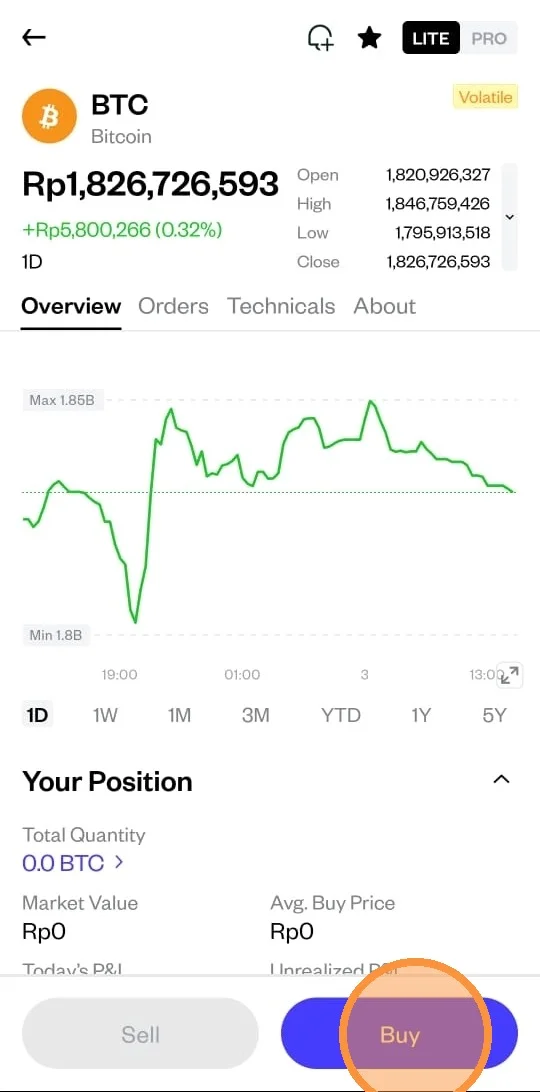
You can buy the asset using 2 options in Pluang, LITE Mode and PRO Mode.
The default setting for every coins are LITE Mode, after that you can click "Buy".
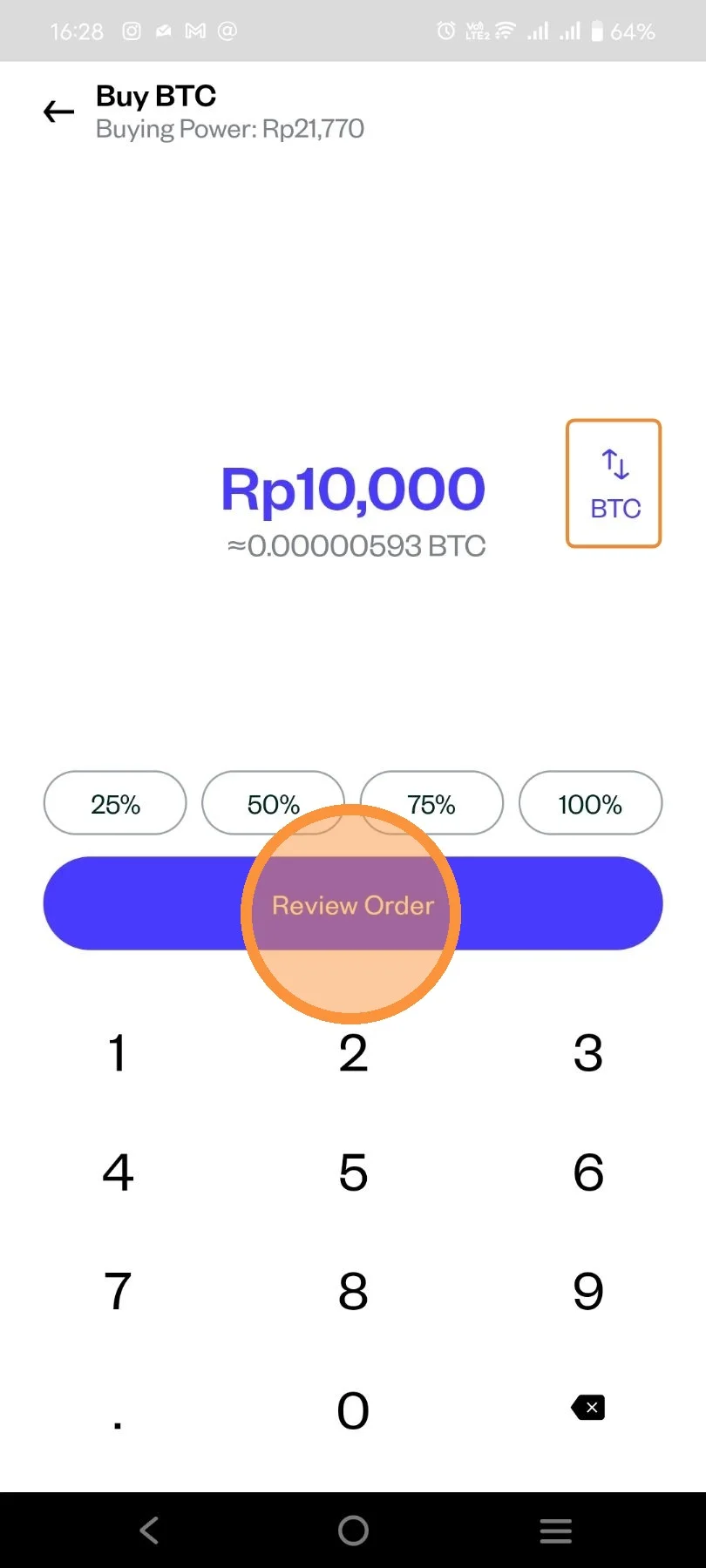
Enter the amount you want to buy. You can enter using IDR or you can also enter the unit that you want to buy.
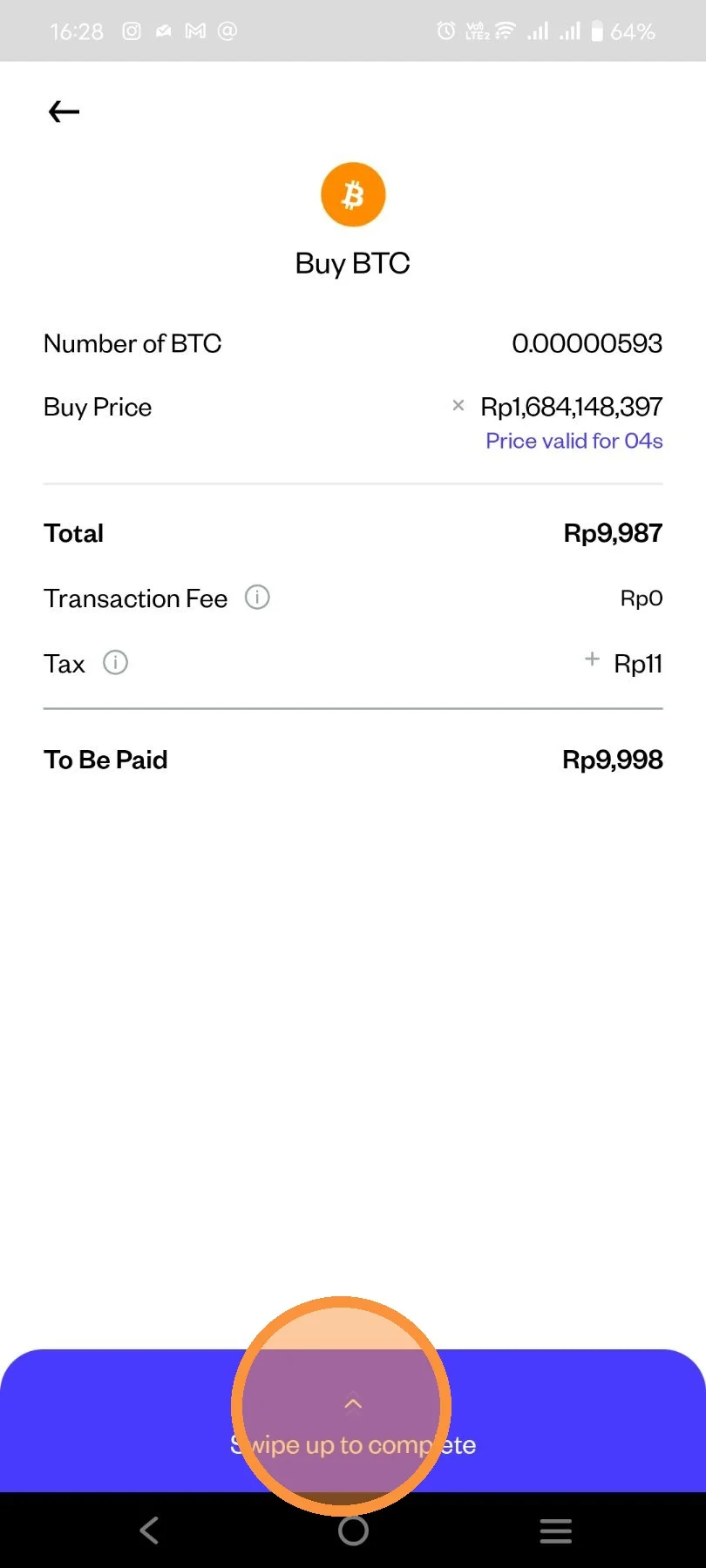
Review the detail of your order. If you're using LITE Mode, system will only hold your order for 6 seconds or your order will be expire.
After that you can swipe up to continue the order.
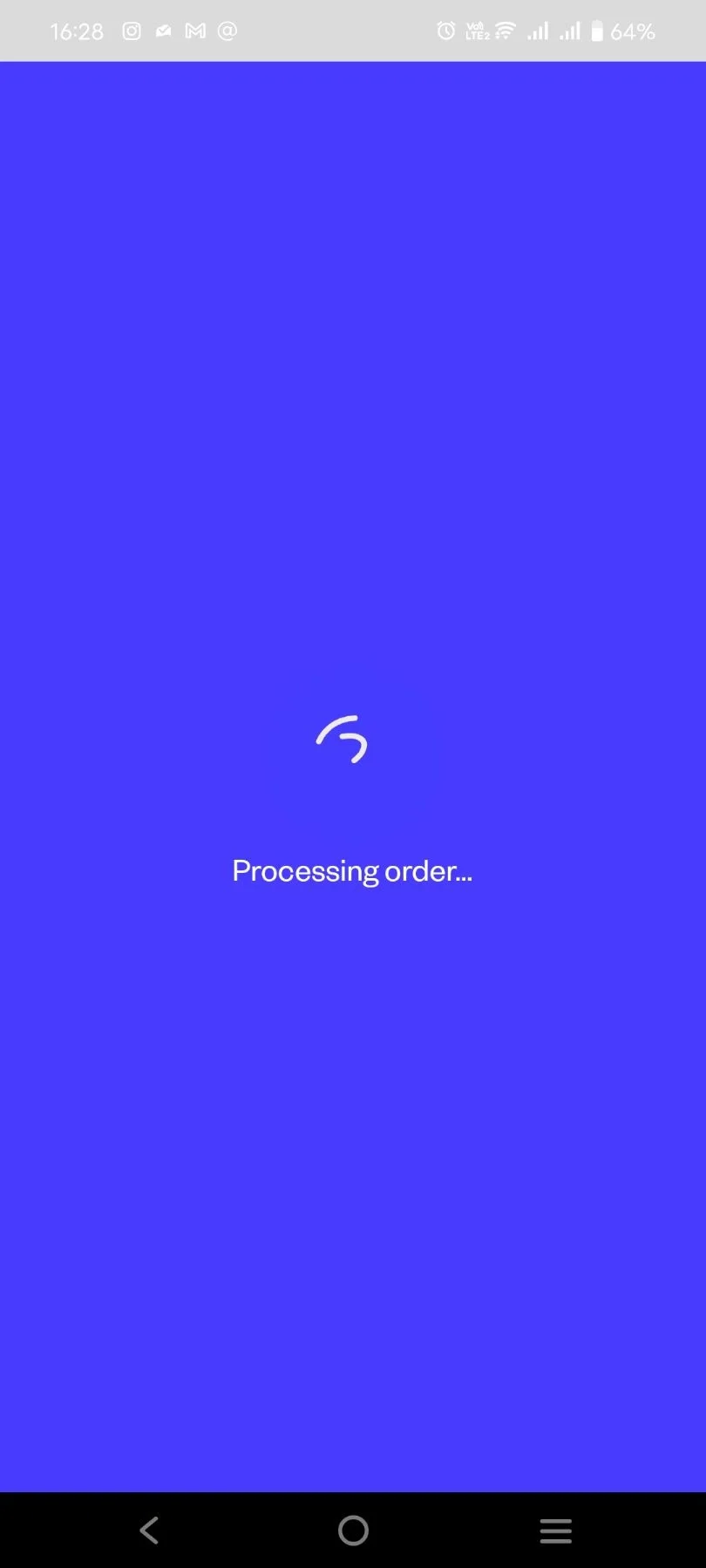
Wait a few seconds for your order to be processed.
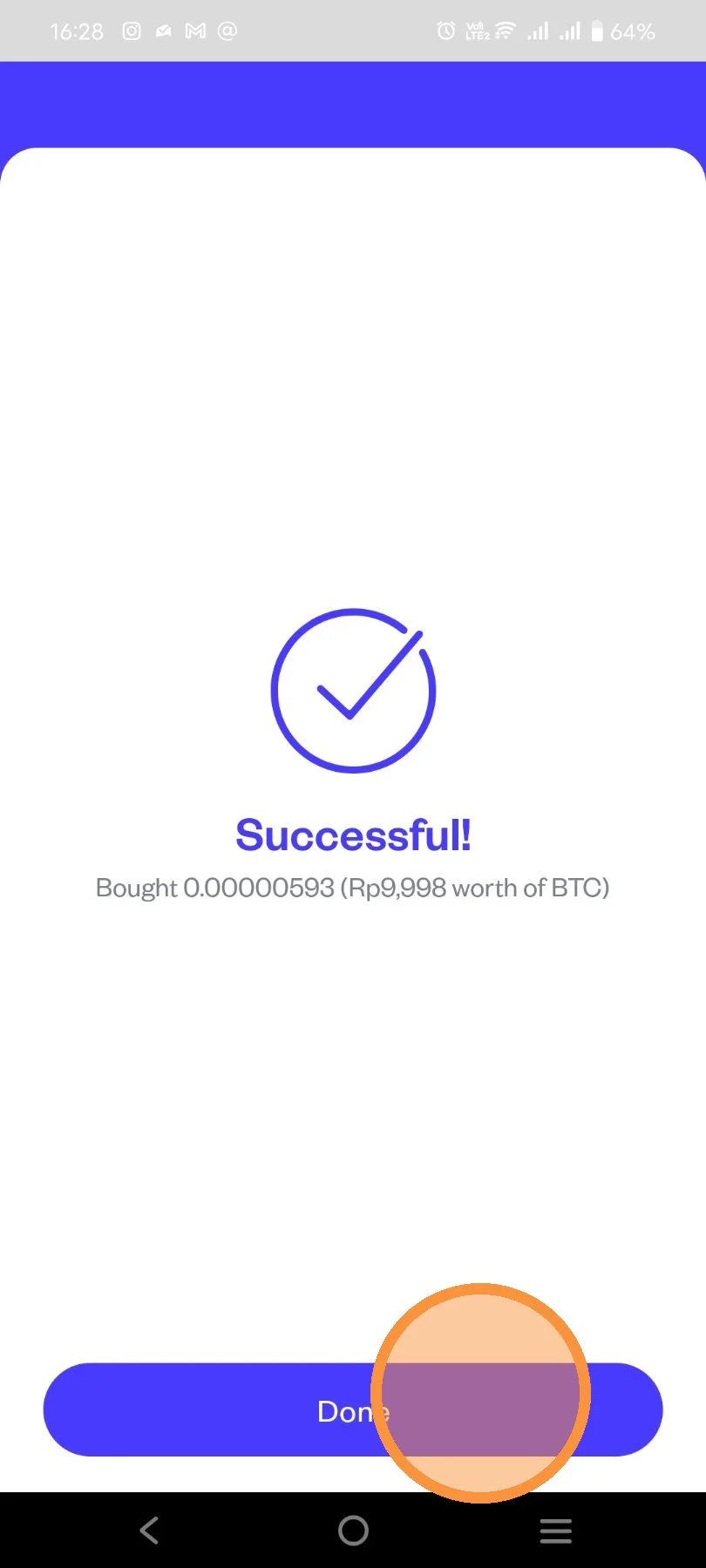
Your order has been successfully placed. Click "Done".
If you want to buy using PRO Mode, you can click the toggle on the top-right of the asset display page.
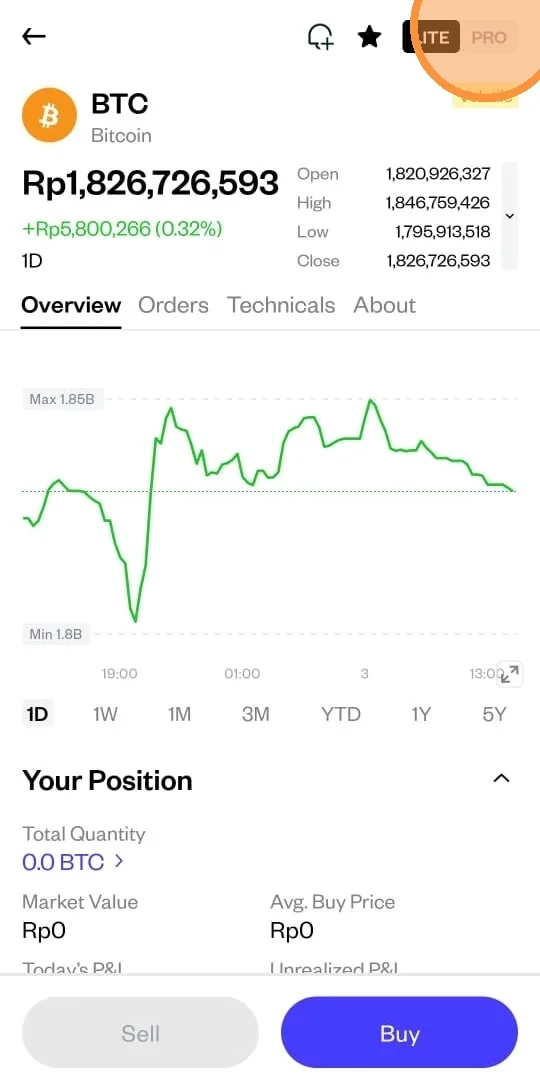
You will be redirected to PRO Mode transition page.
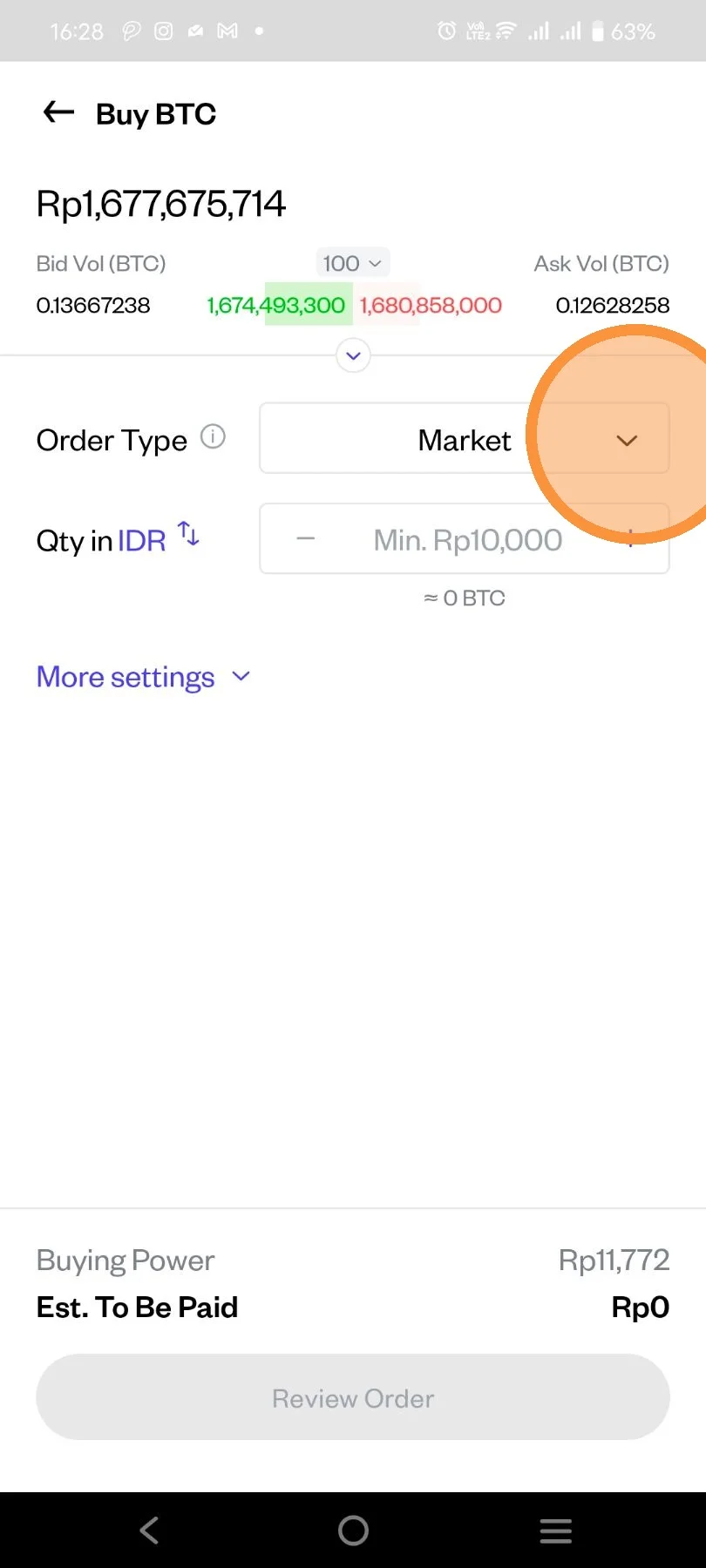
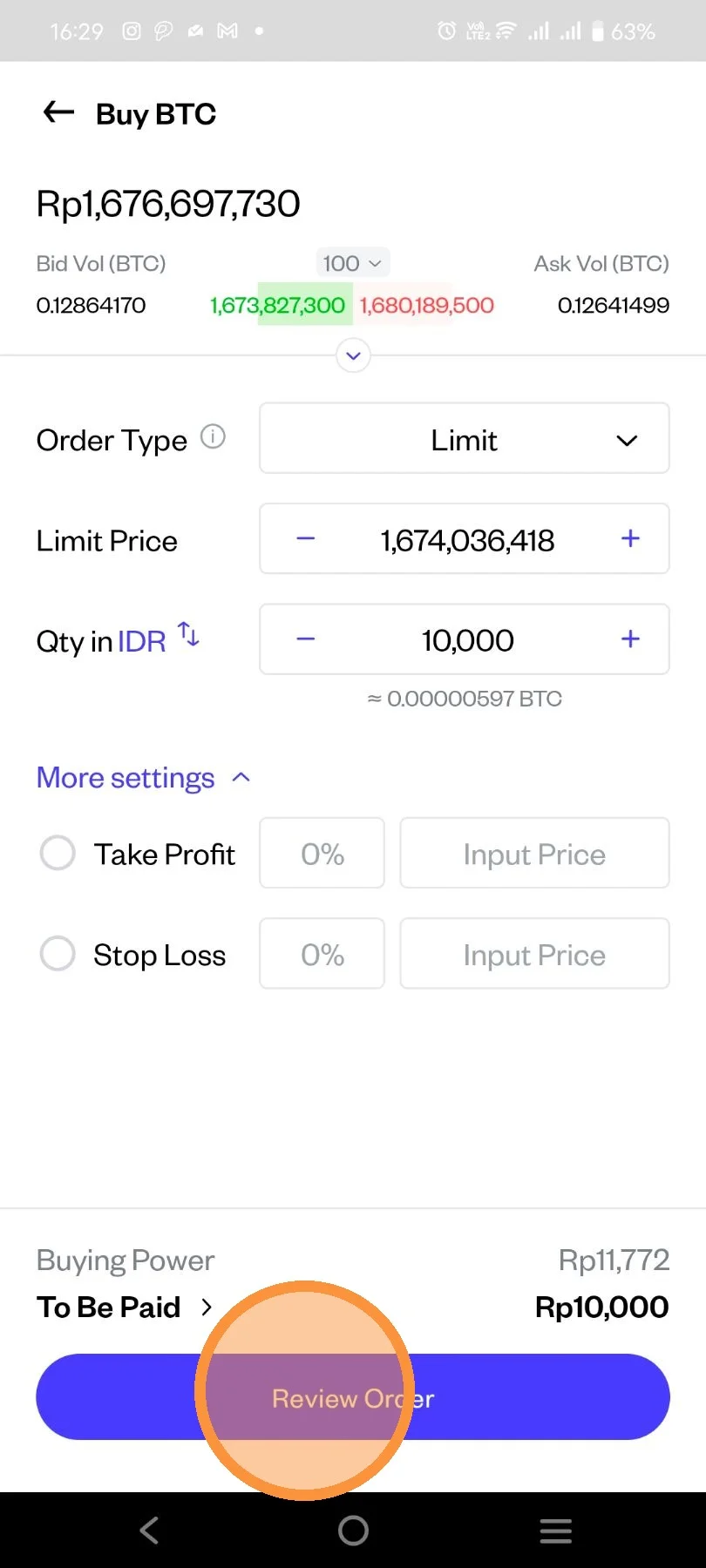
In PRO Mode order detail, you can select the order type.
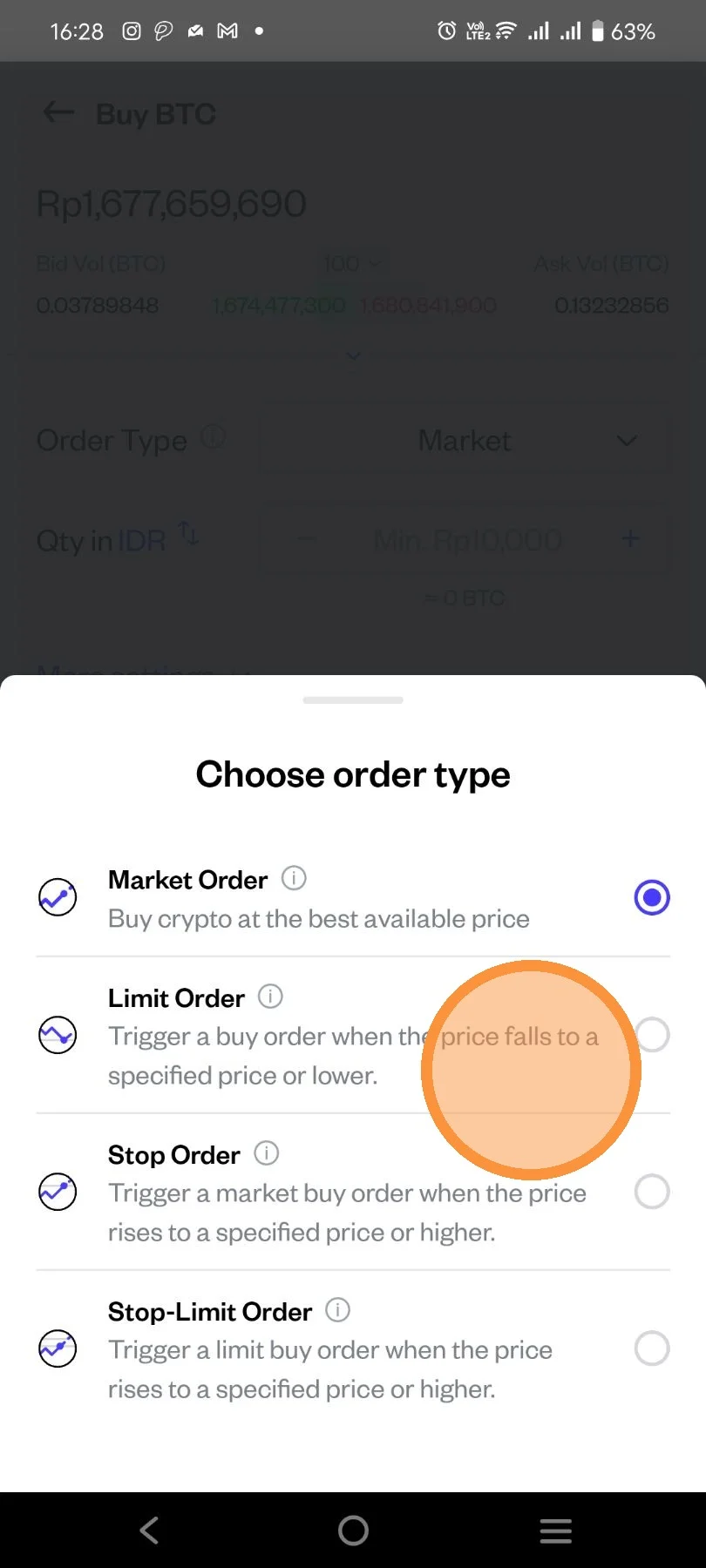
There are 4 order types on PRO Mode. Choose the one that you want to use.
Fill all the necessary detail. You can also place Take Profit or Stop Loss individually, or you can also place them both to create OCO (One-Cancels-The-Other) Order.
After all details has been filled, click "Review Order".
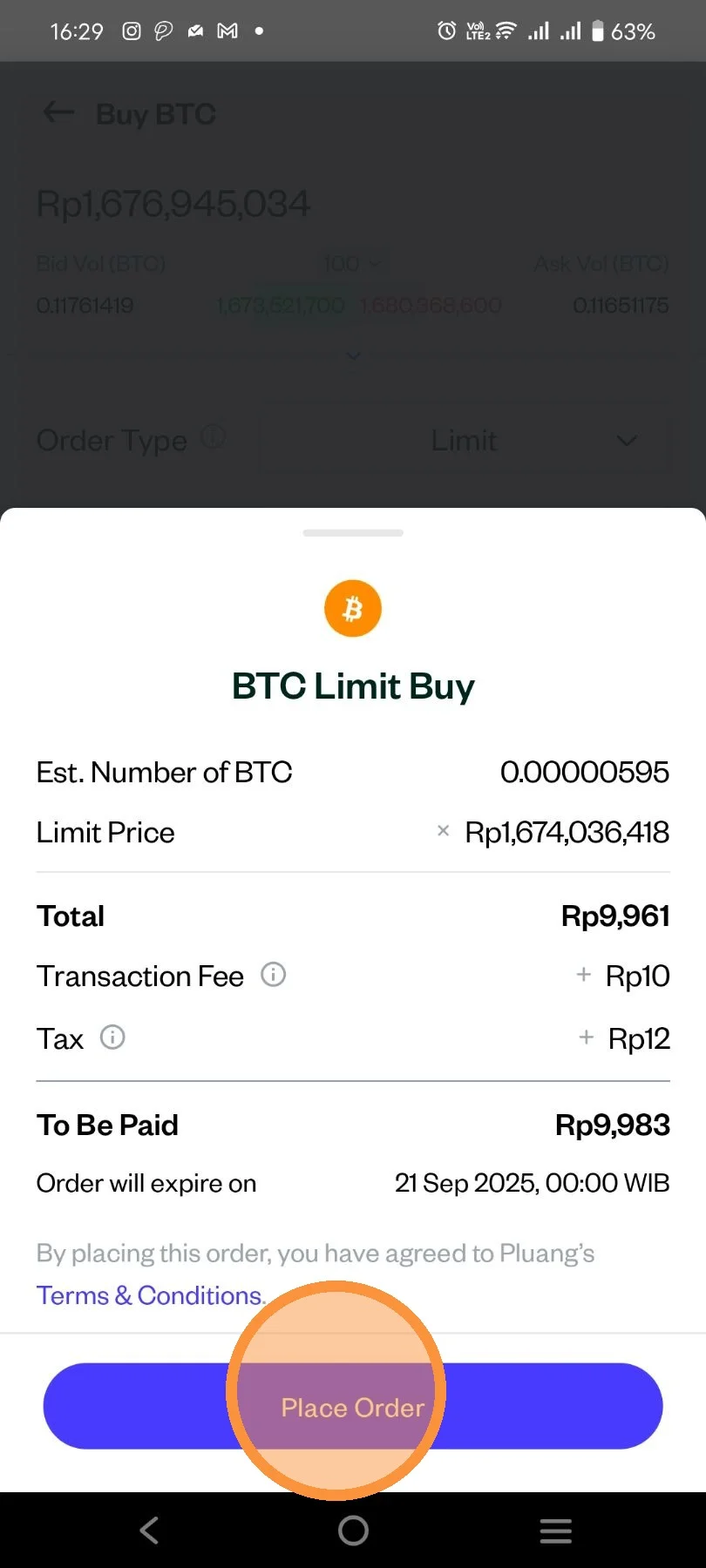
Review the details of your order. Then click "Place Order".
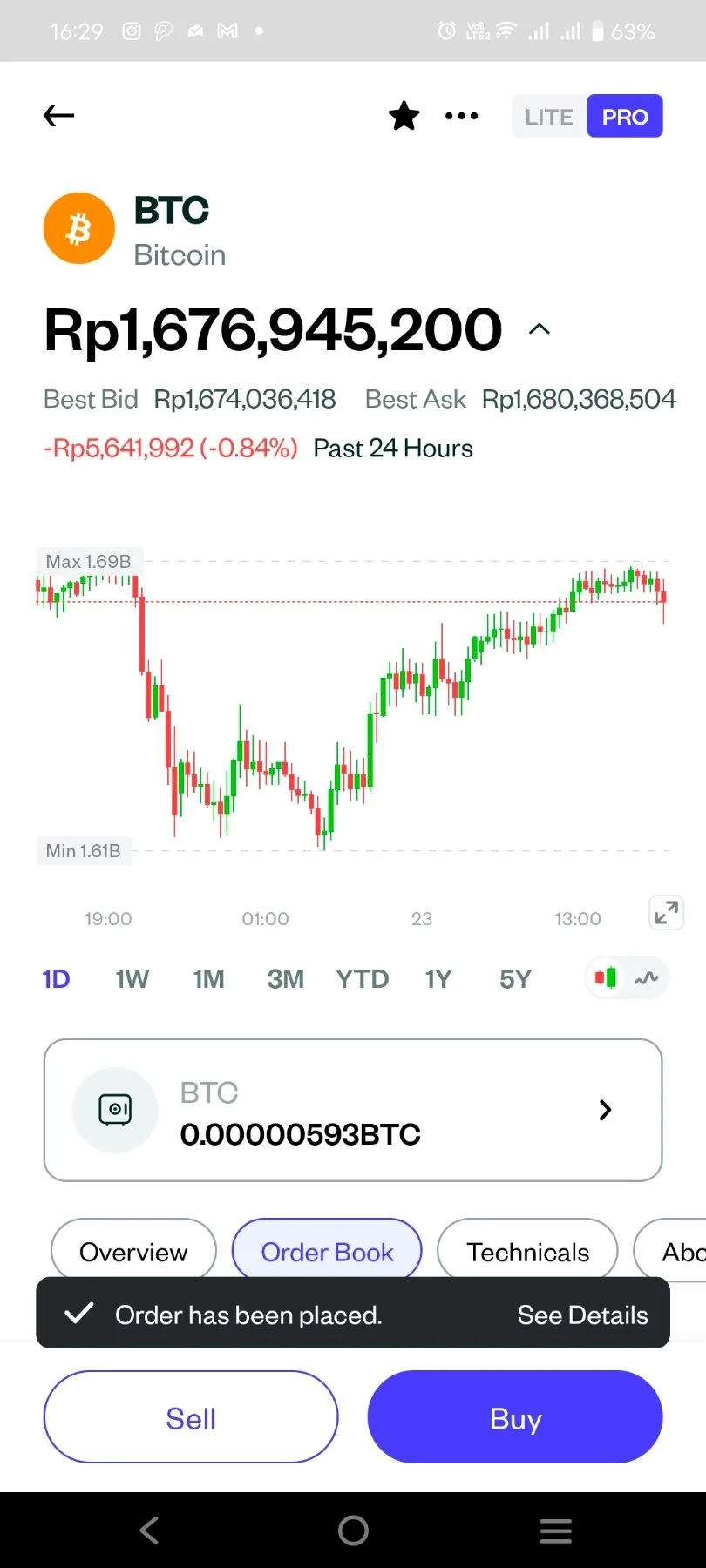
Your order has been successfully placed. You can check the condition of your order in Transaction History page.