How do I connect Pluang Agentic Trading to Claude?
You can connect Pluang Agentic Trading to Claude in a few minutes by adding Pluang's MCP server URL, https://mcp.pluang.com/mcp, as a custom connector under Customize → Connectors in Claude on the web or the desktop app. You then log in on Pluang's own login page to approve the connection, and Claude can start working with your Pluang account.
Before you start, make sure:
- You have a Pluang account — Agentic Trading is open to all Pluang users
- Your Claude plan lets you add custom connectors — whether this option is available, and on which plan, is set by Anthropic, not Pluang
- You're using Claude on the web (claude.ai) or the Claude desktop app for this first connection, not the mobile app
9 Steps
Open Claude on the web or the desktop app. Sign in to Claude at claude.ai or open the Claude desktop app. Make this first connection from the web or desktop, not from the Claude mobile app.
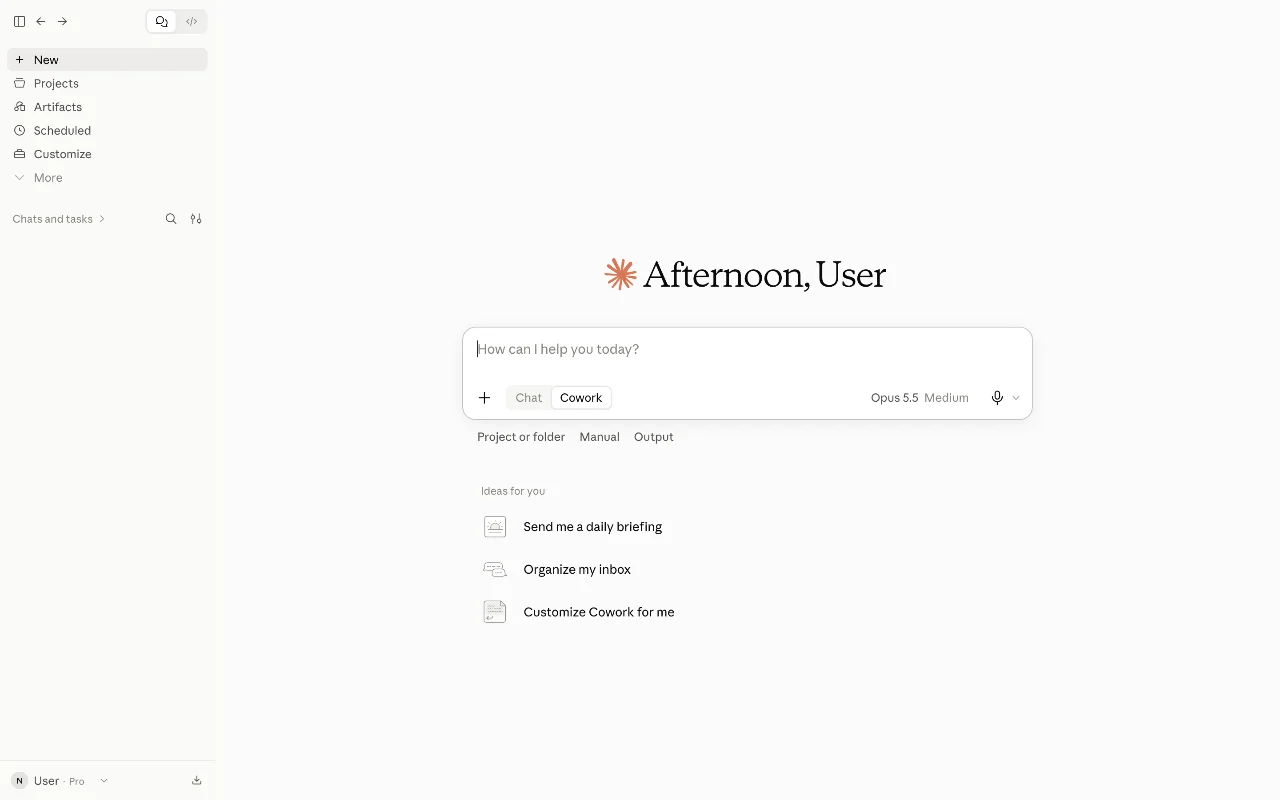
Select Customize at the top left.
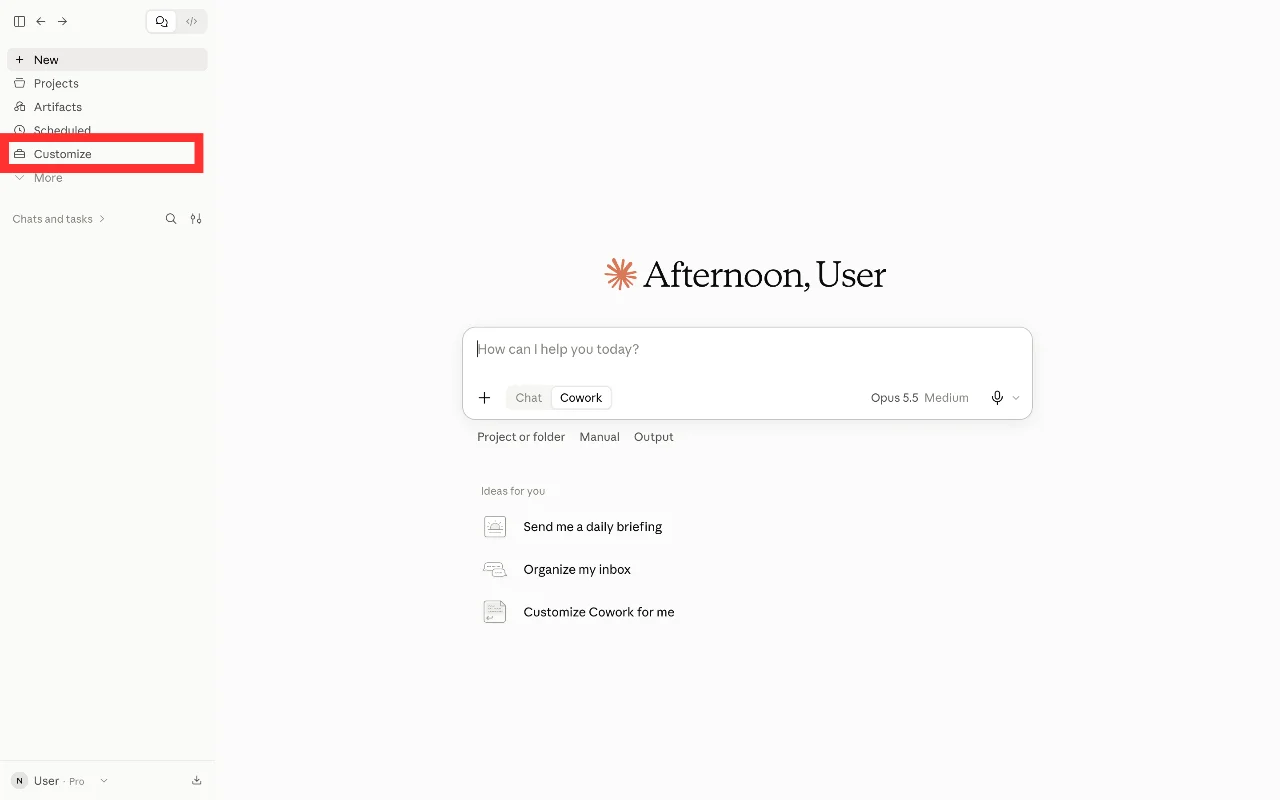
Open the Connectors tab then select Add at the top right and add custom connector.
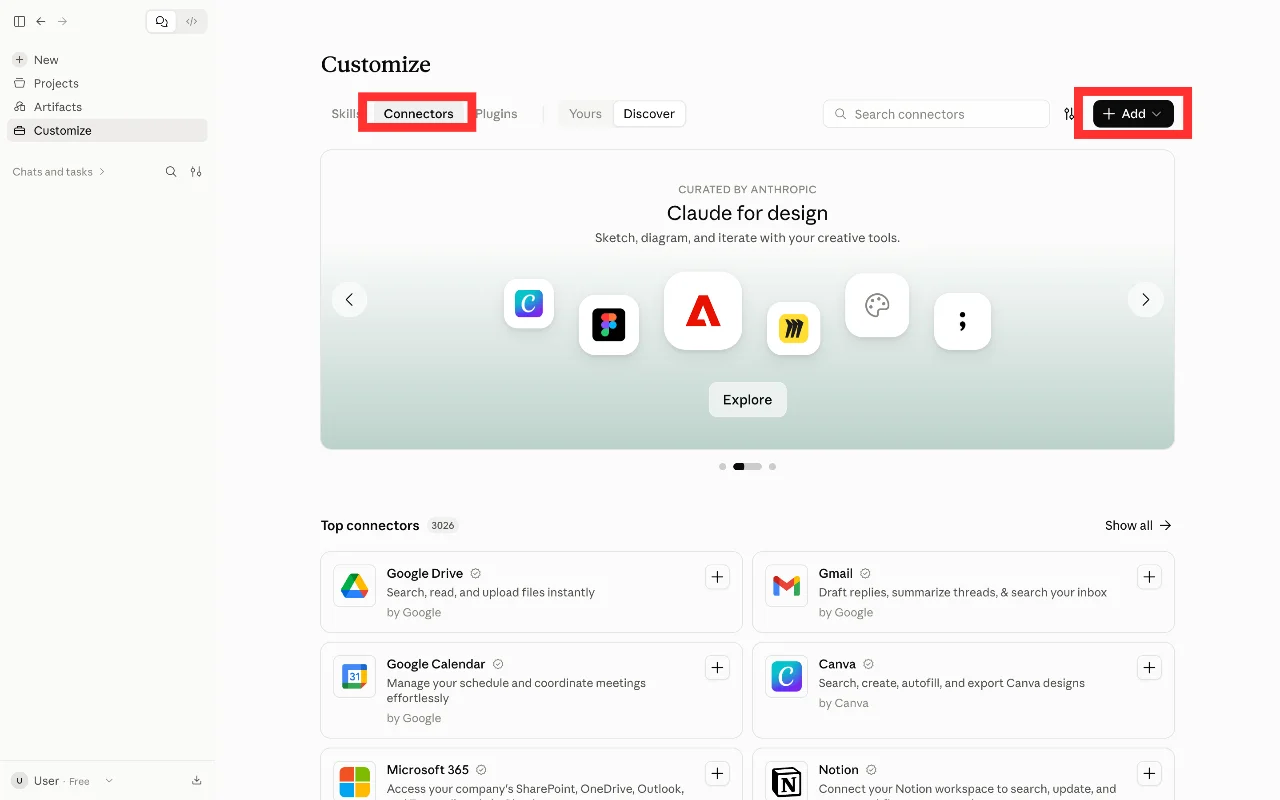
Enter the connector name and Pluang's MCP server URL. In Name, enter Pluang Agentic Trading. In Remote MCP server URL, enter https://mcp.pluang.com/mcp exactly as written.
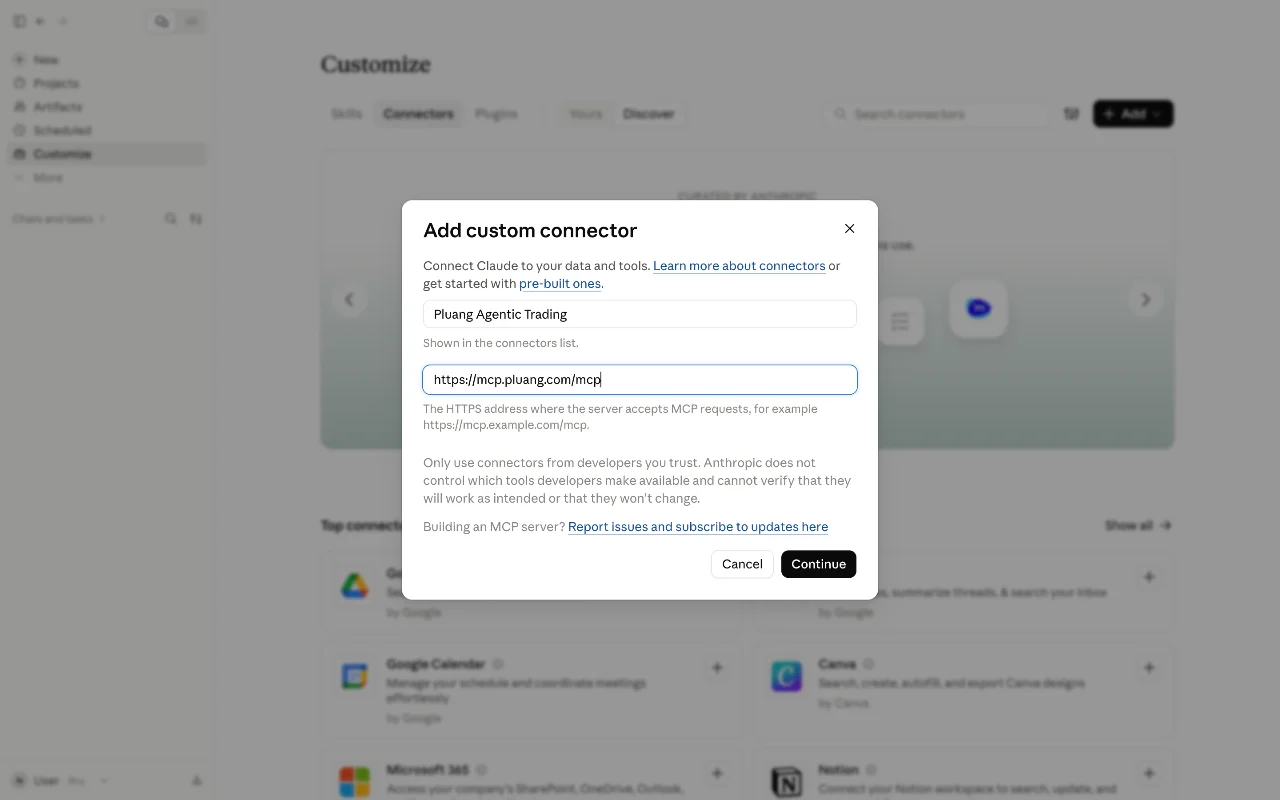
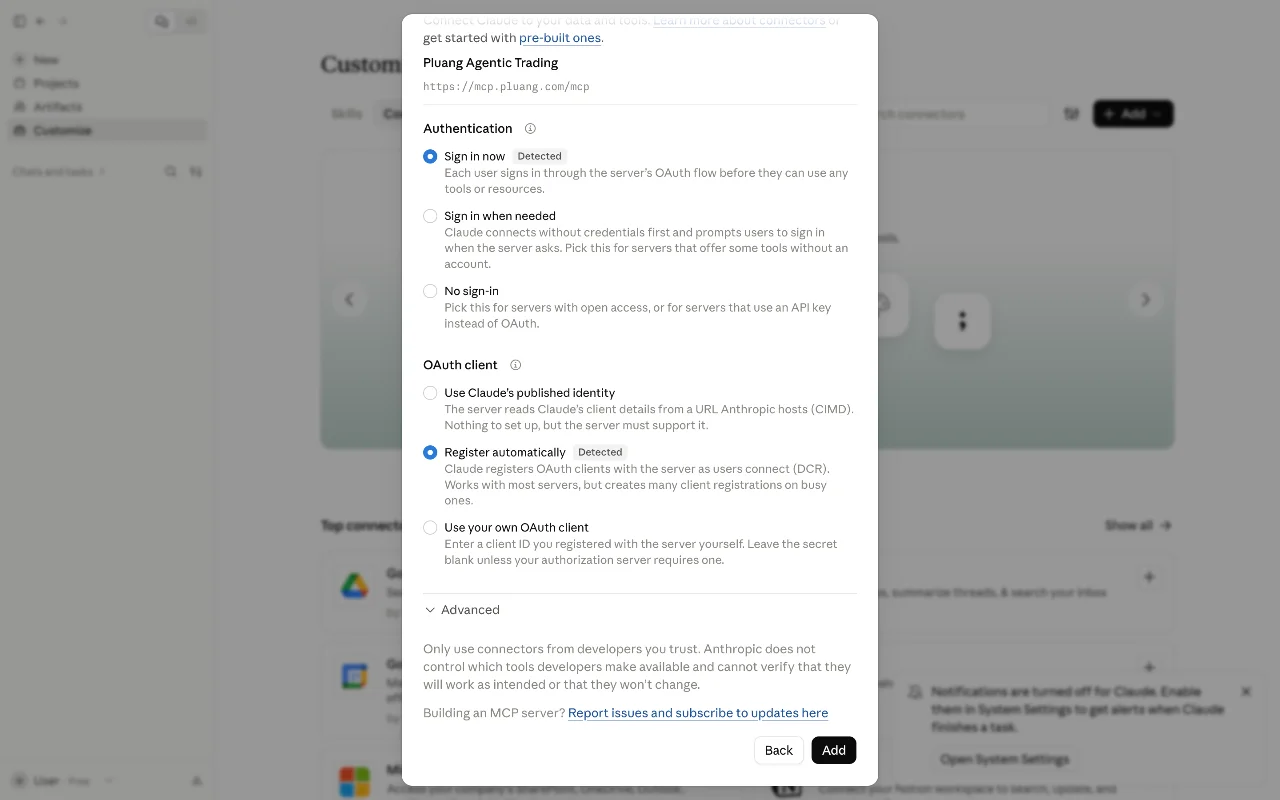
Leave Advanced settings as they are. You don't need to change the authentication or OAuth Client fields.
Scroll then click Add.
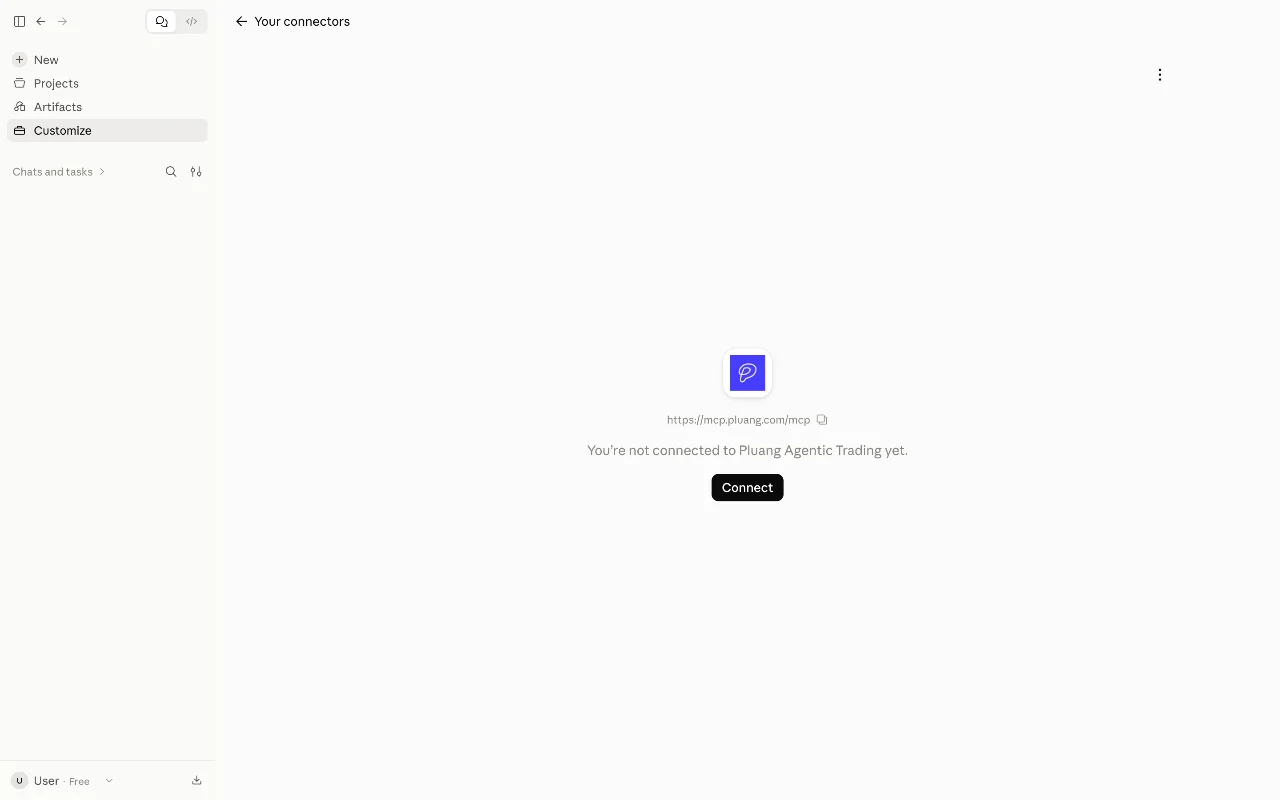
Select Connect.
Select Continue Connecting.
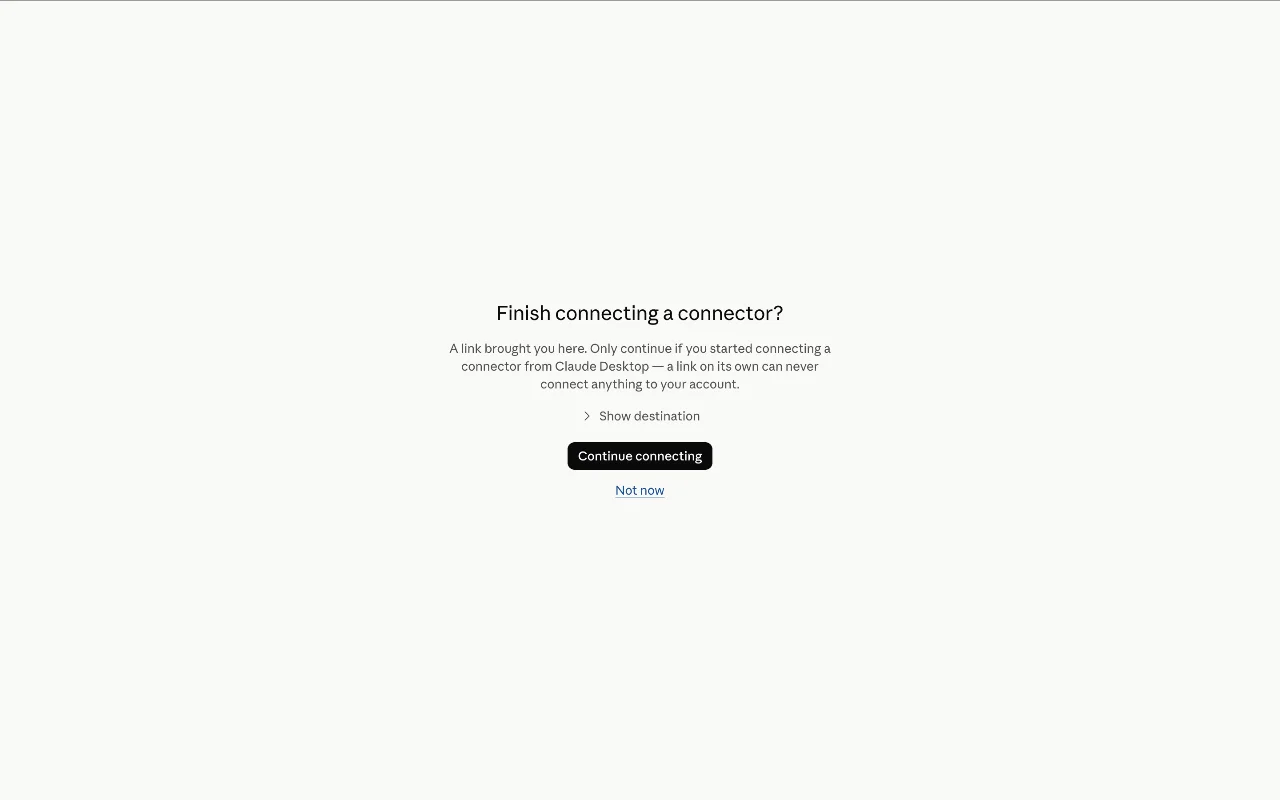
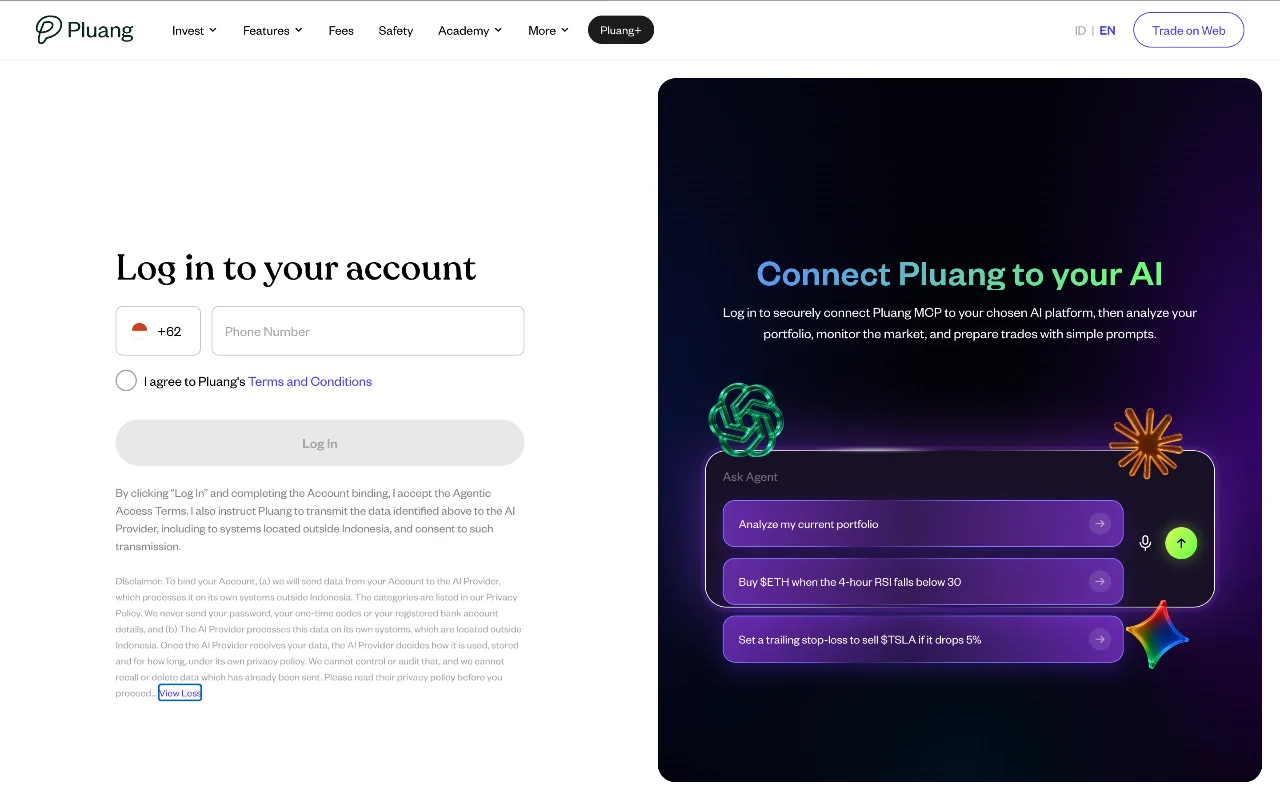
You will be redirected to Pluang's own login page.
Complete the Pluang login steps shown.
Wait to be redirected back to Claude. Once you've logged in, Pluang sends you back to Claude automatically.