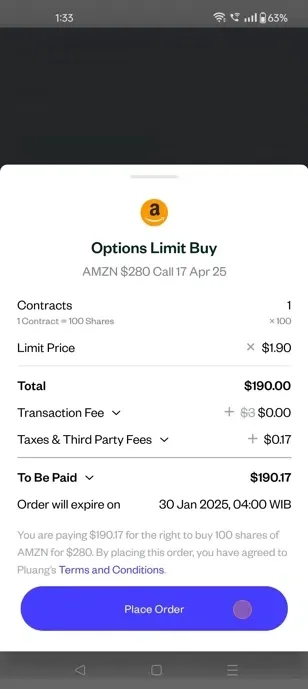
How to buy an Global Stock Options Contract (Call/Put) on Pluang App
21 Steps
Open Pluang App and login.
Options trading page can be accessed on the Pluang App in three ways
- Clicking on "Options trading" on the quick button panel
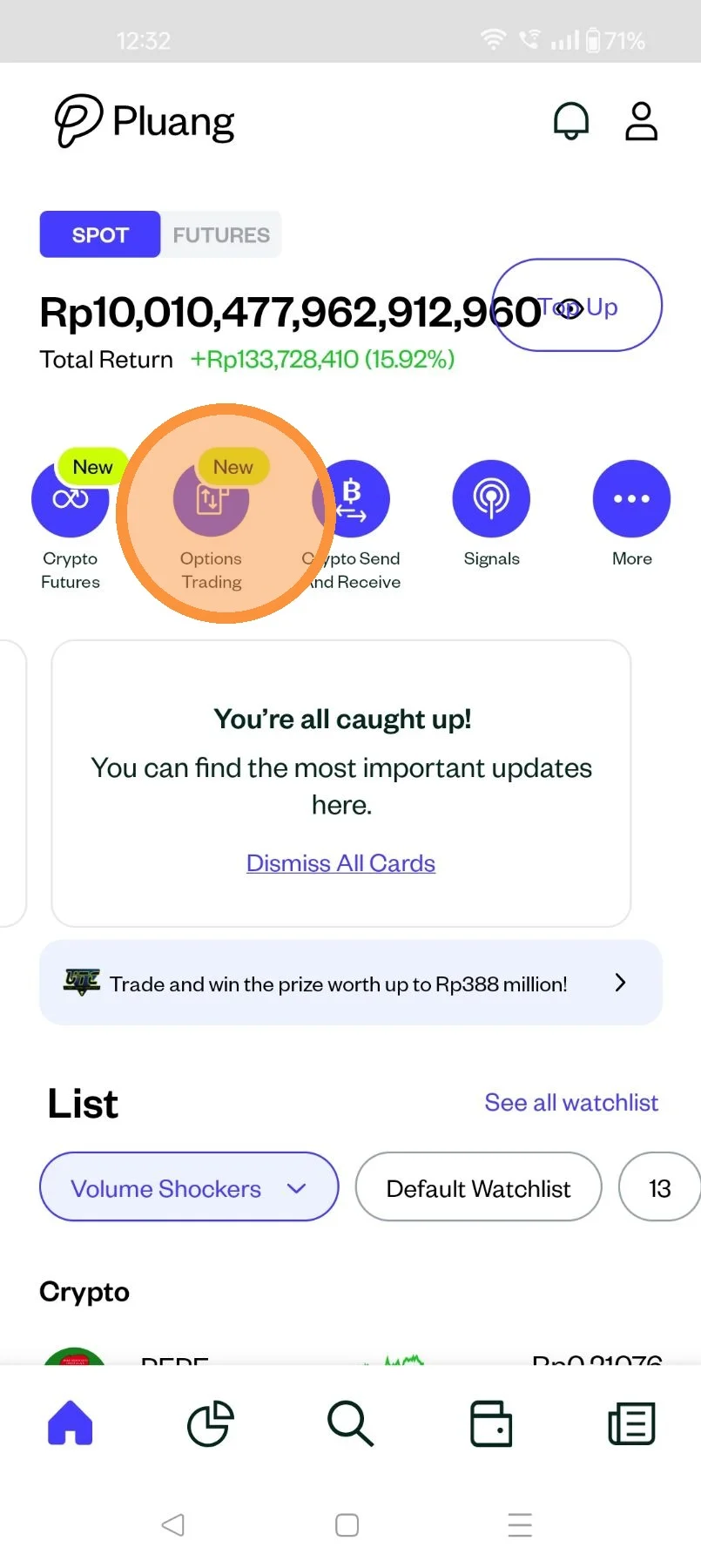
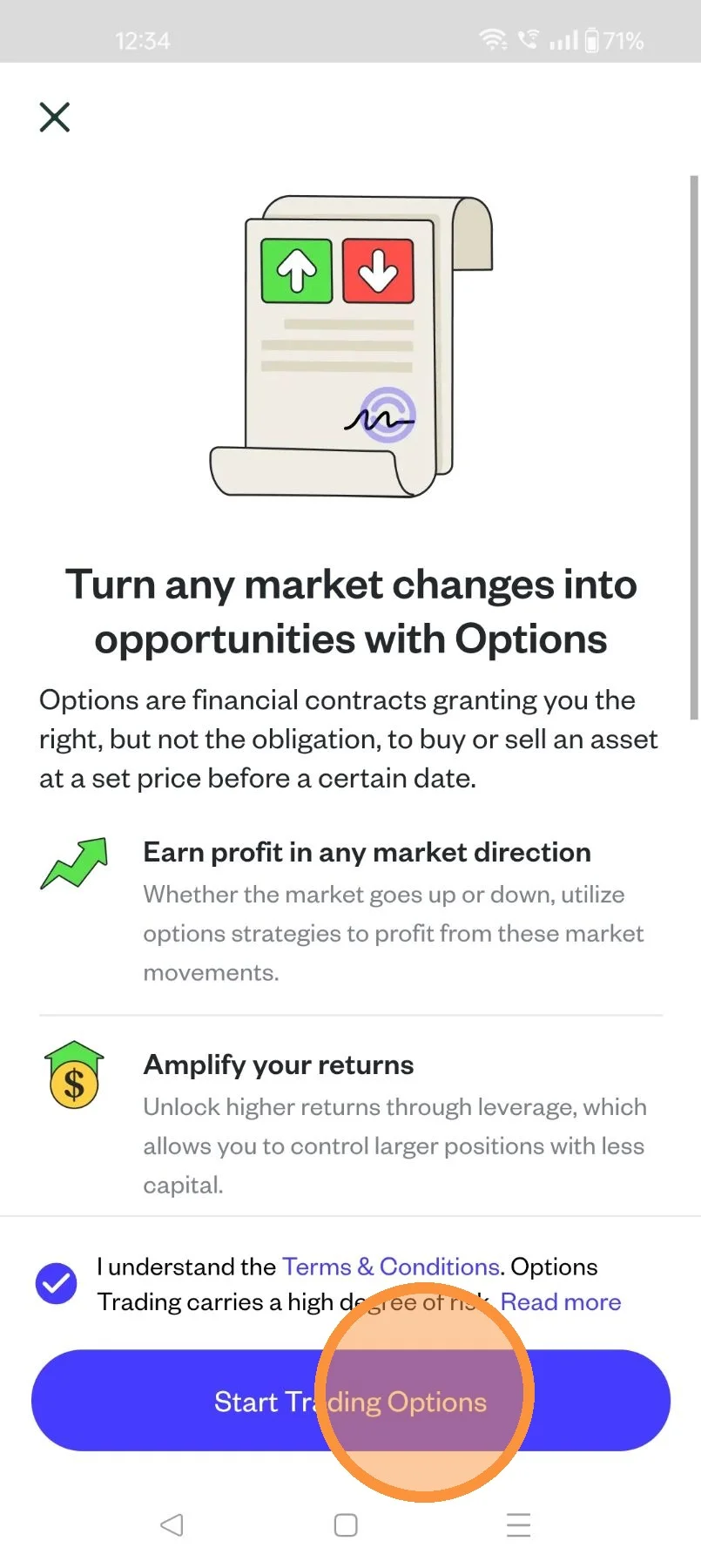
Accept T&C and Click "Start Trading"
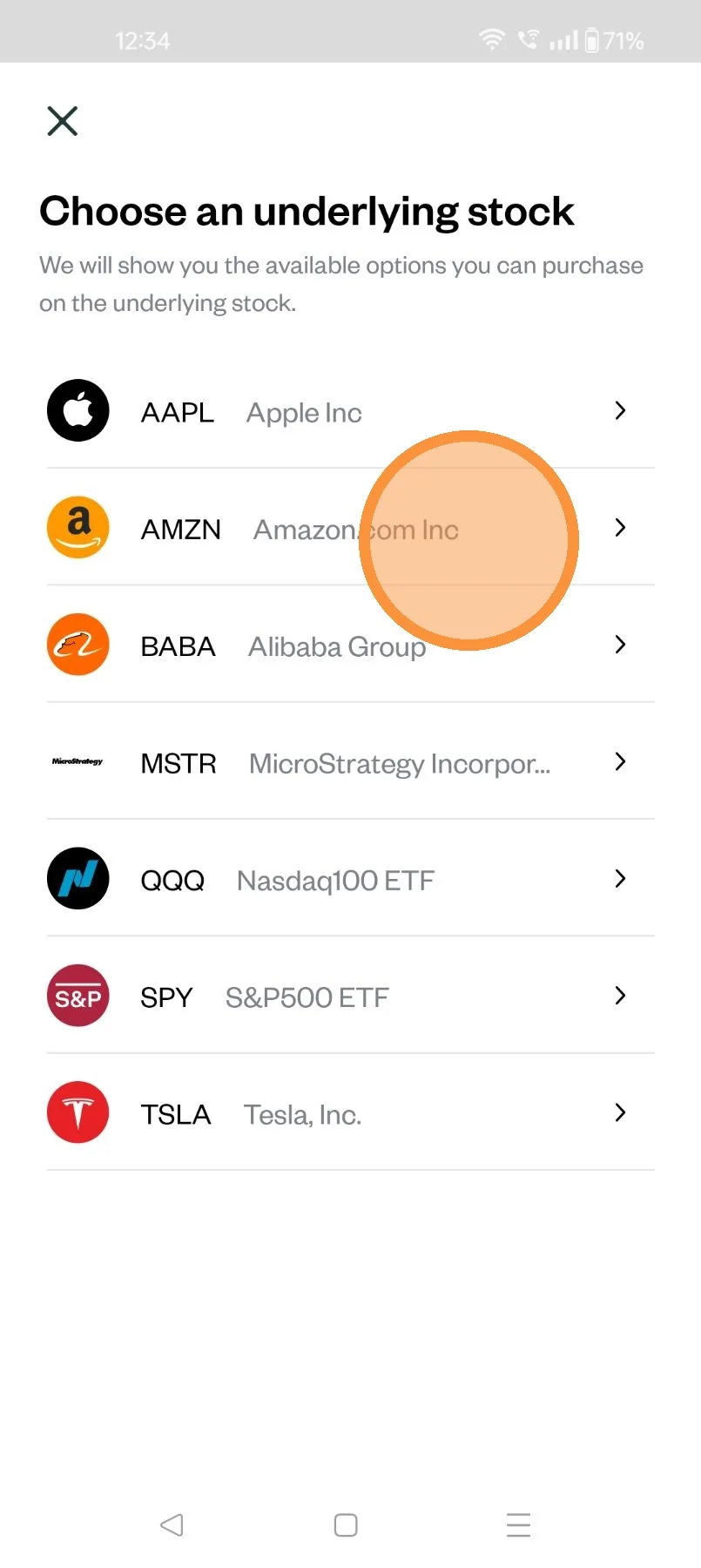
Choose the underlying stock
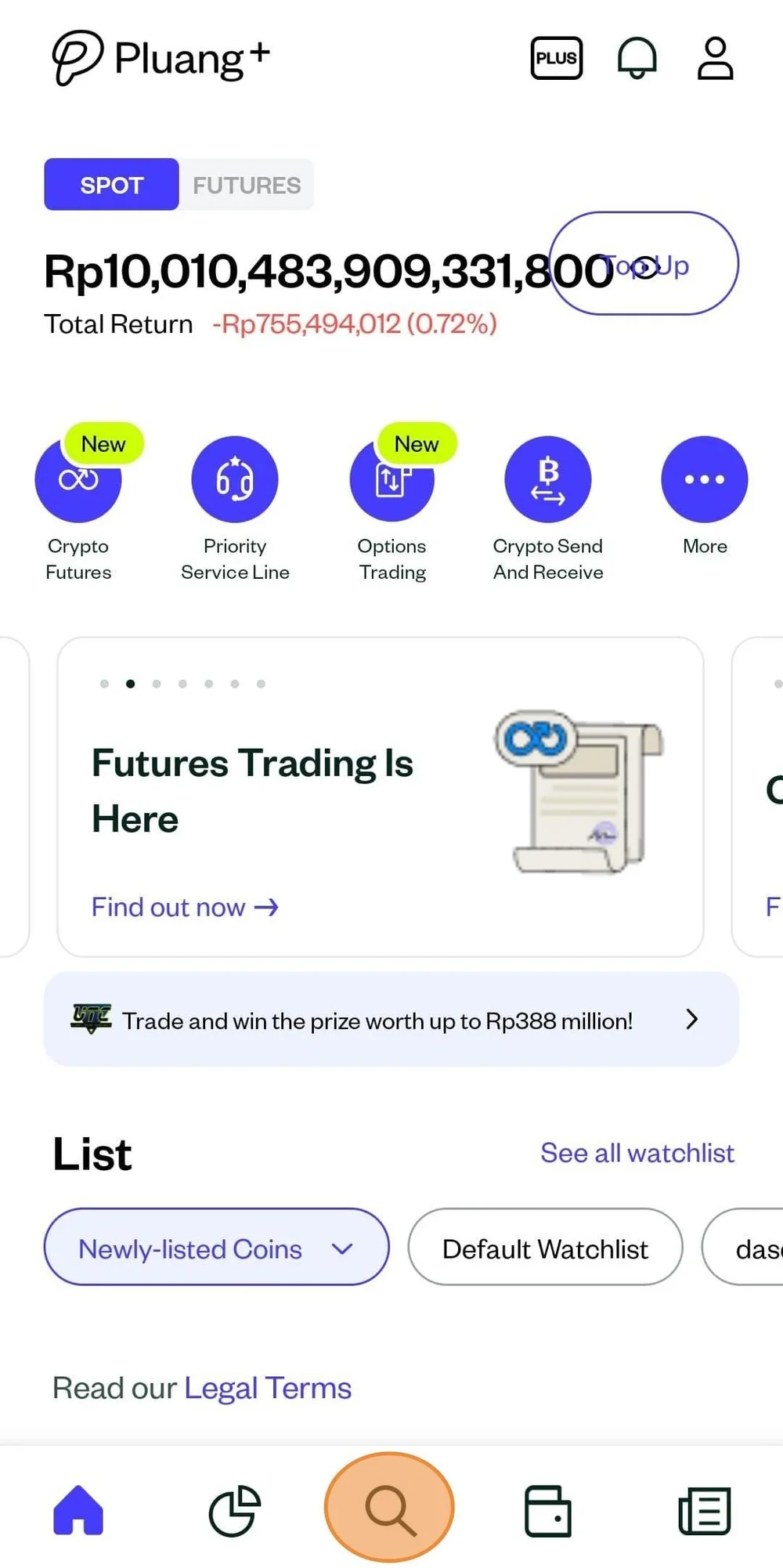
- Clicking "Explore" on the Tab bar
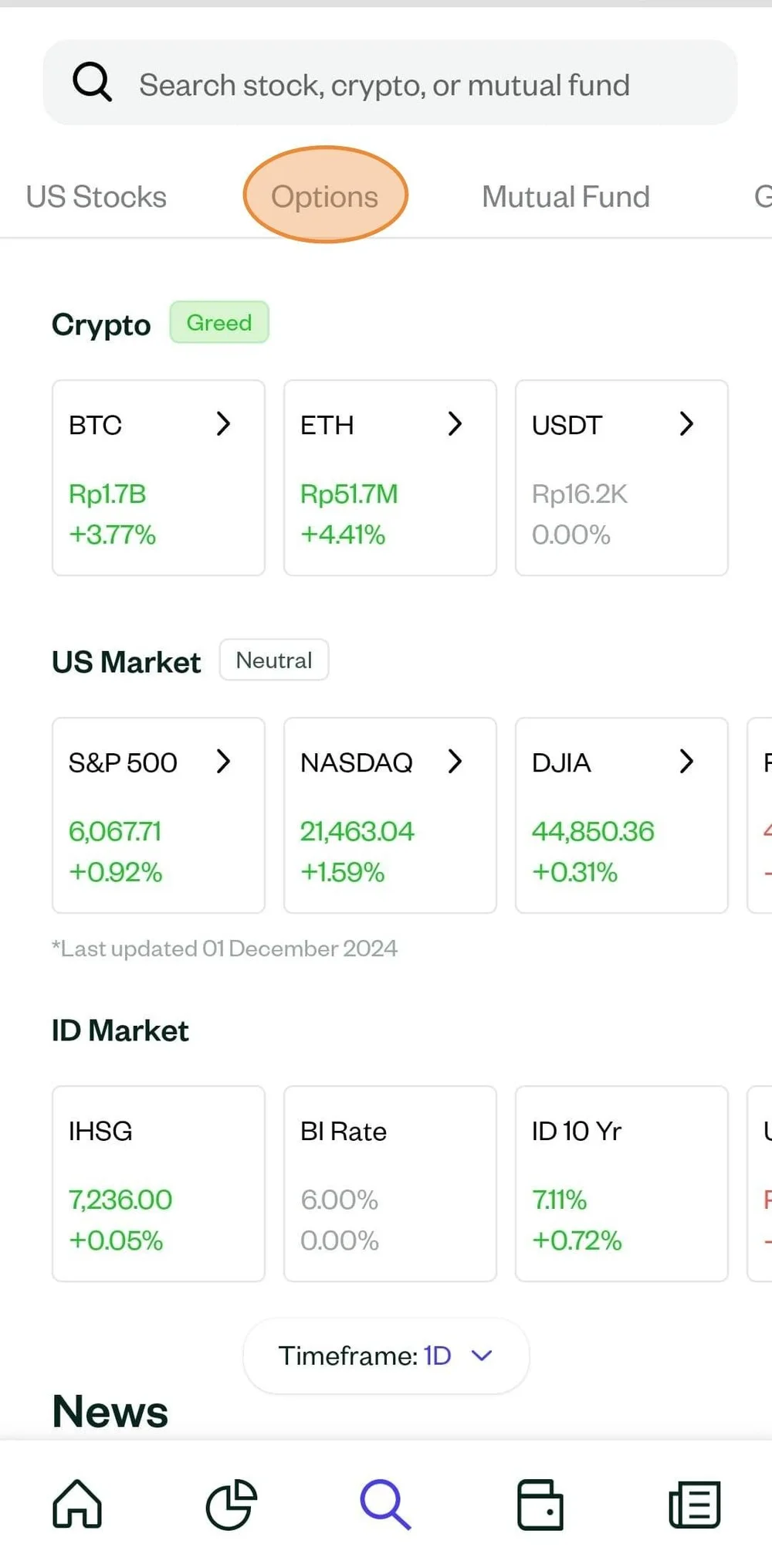
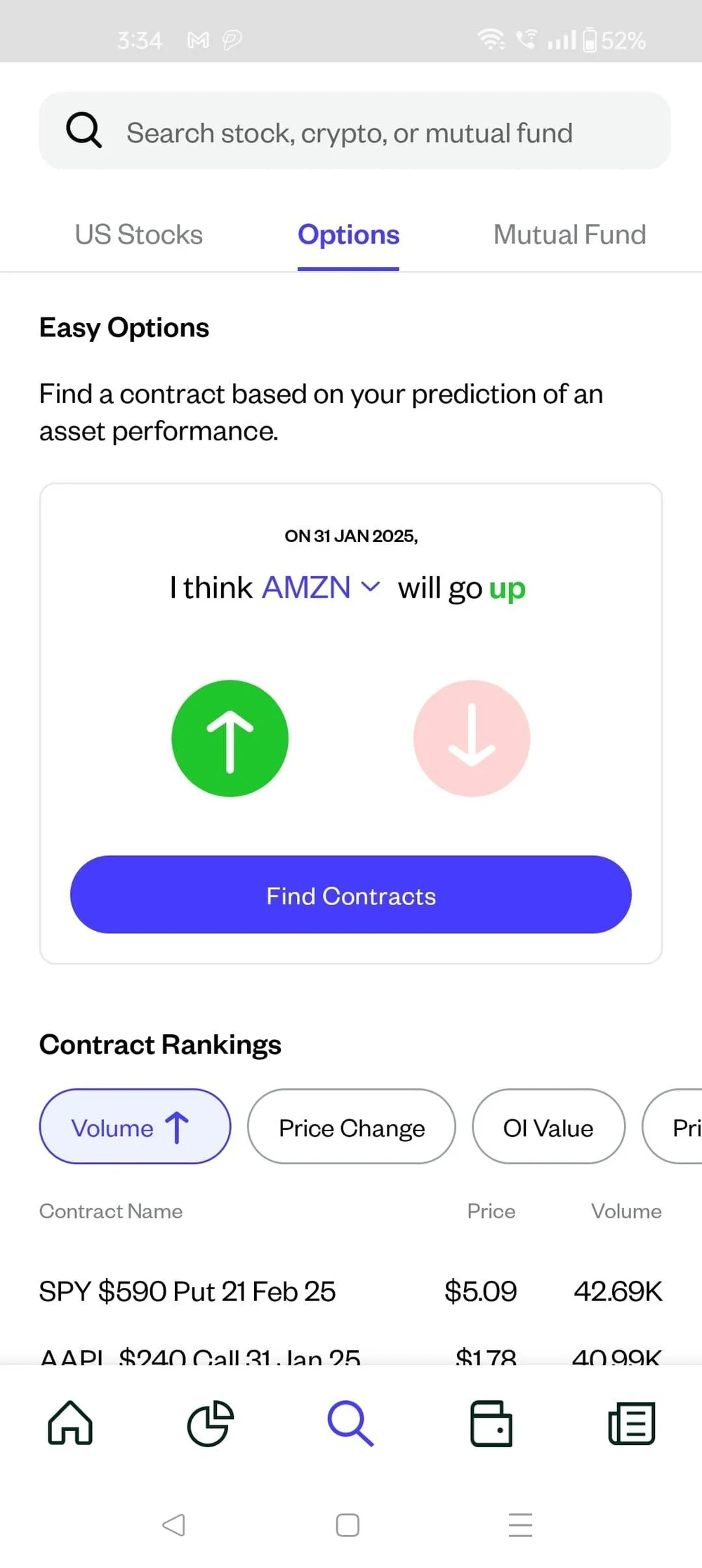
Click on "Options"
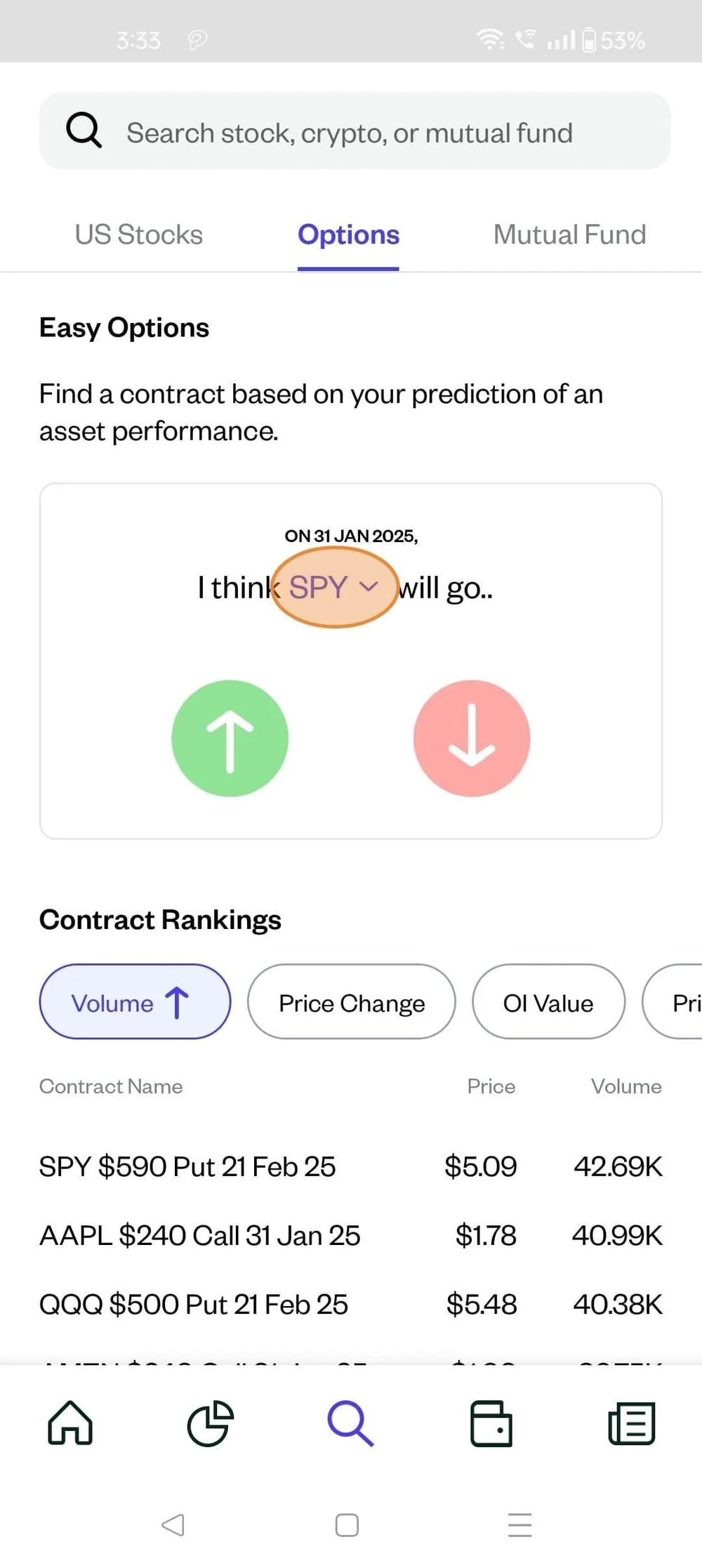
Click here to see the stocks available for options trading
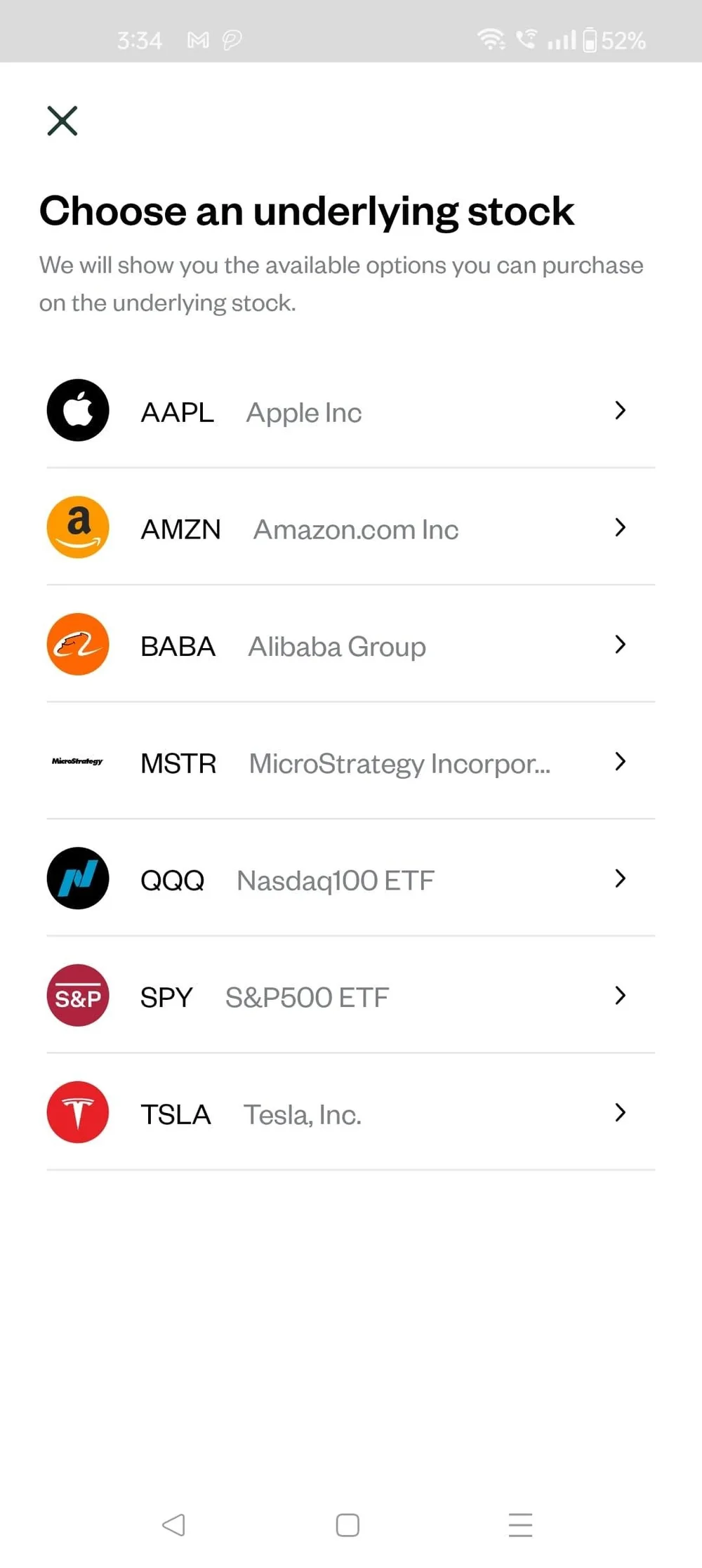
Select the Stock
Once the stock is selected, click on up/down (depending on where you think the stock price will go).
and then "Find Contracts"
- Via the Asset Description Page (ADP)
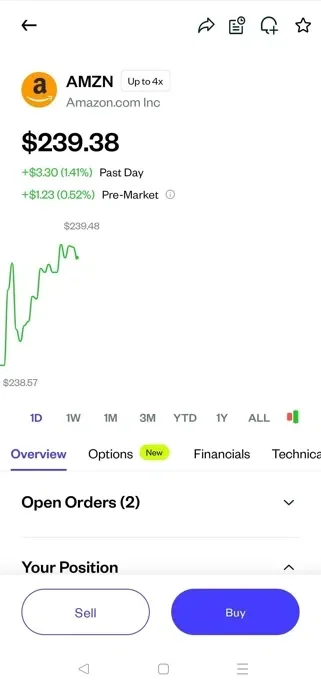
In this case you would need to pre select the stock - Amazon has been selected via explore/watchlist
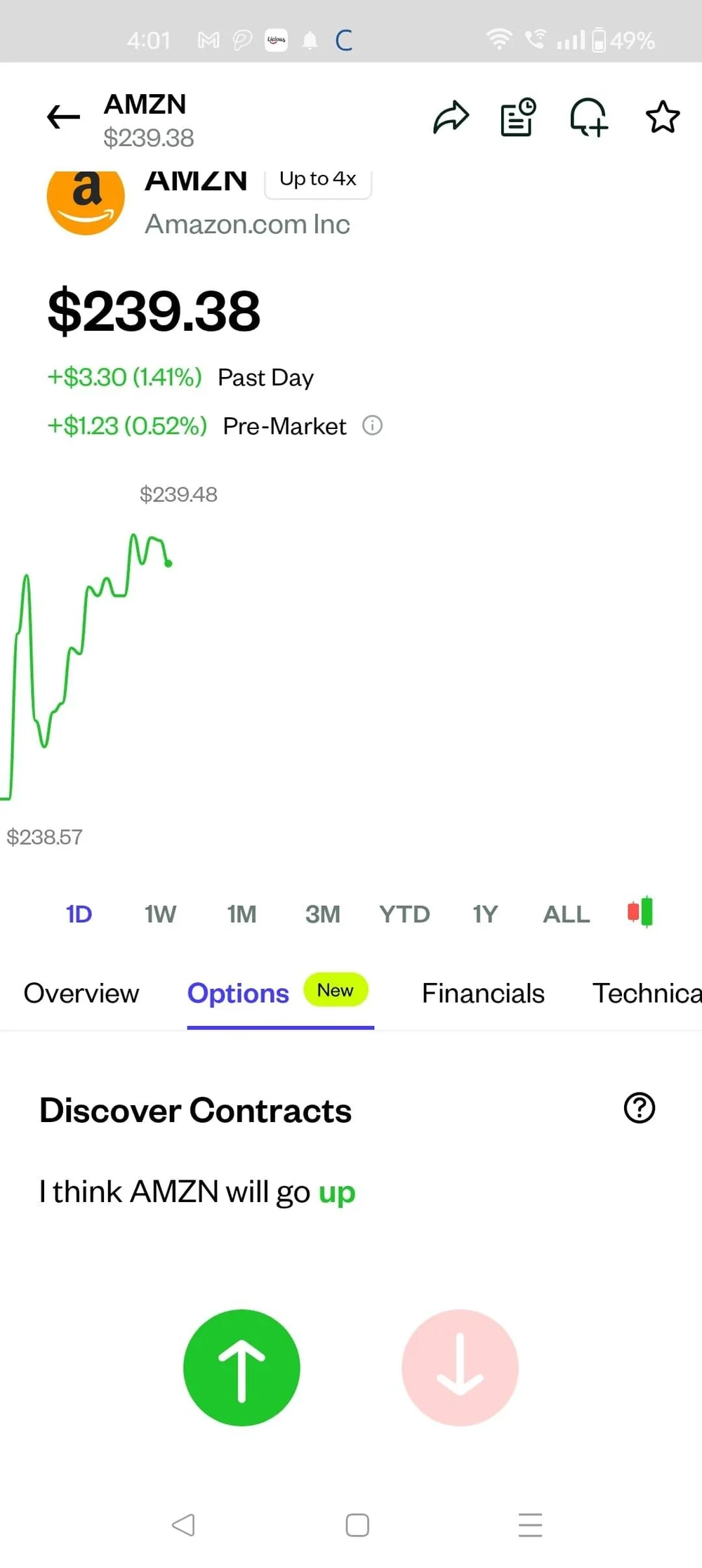
Click on "Options" on the ADP
Click on up/down (depending on where you think the stock price will go)
All available options contracts will be listed once you scroll below
Contracts available will be listed as below
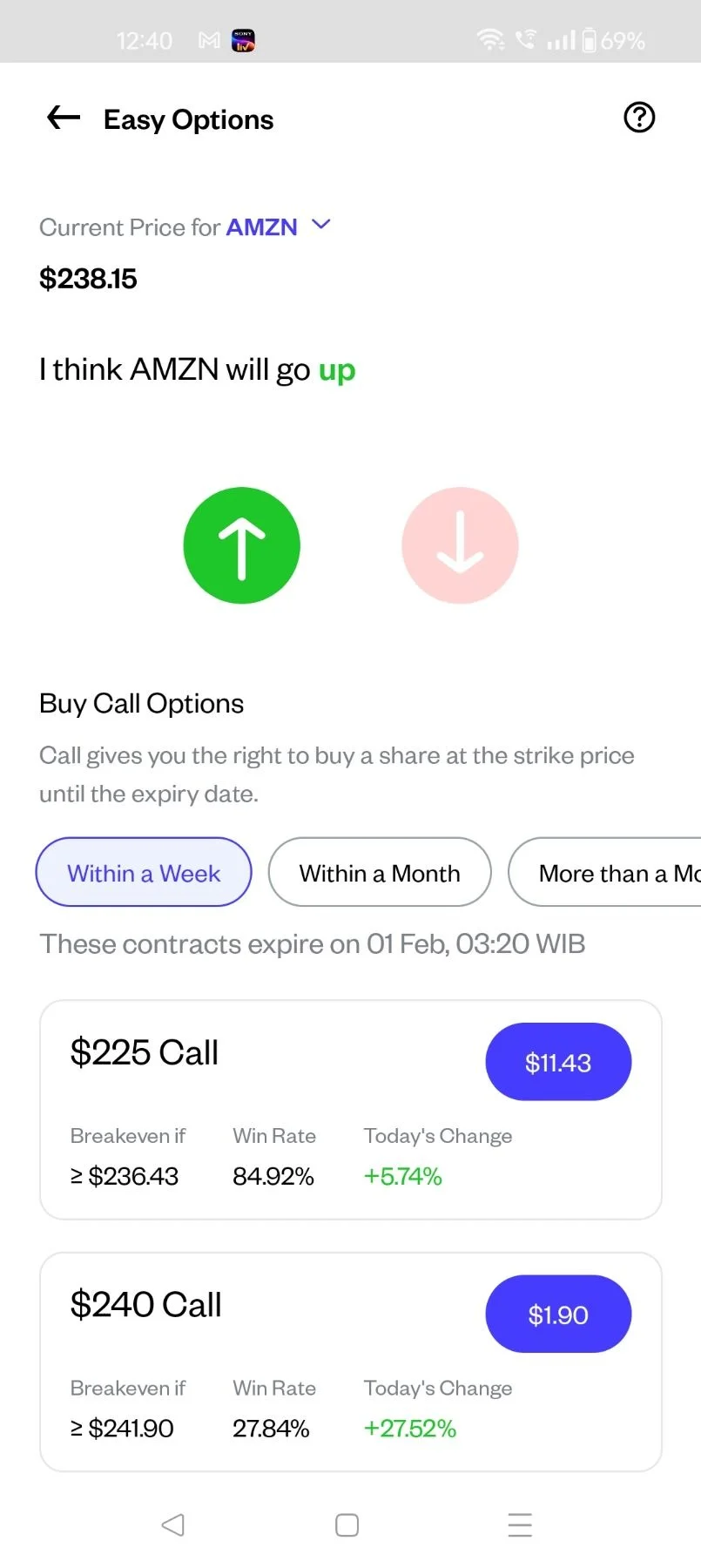
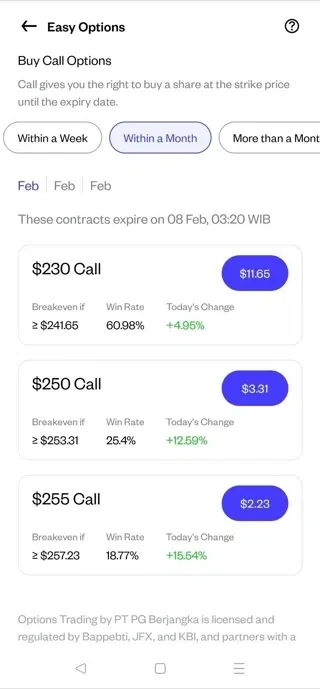
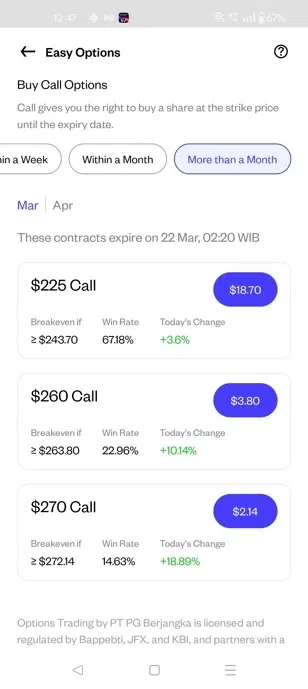
Select the expiry:
- Within a Week (expiry will be the Week 0 Friday)
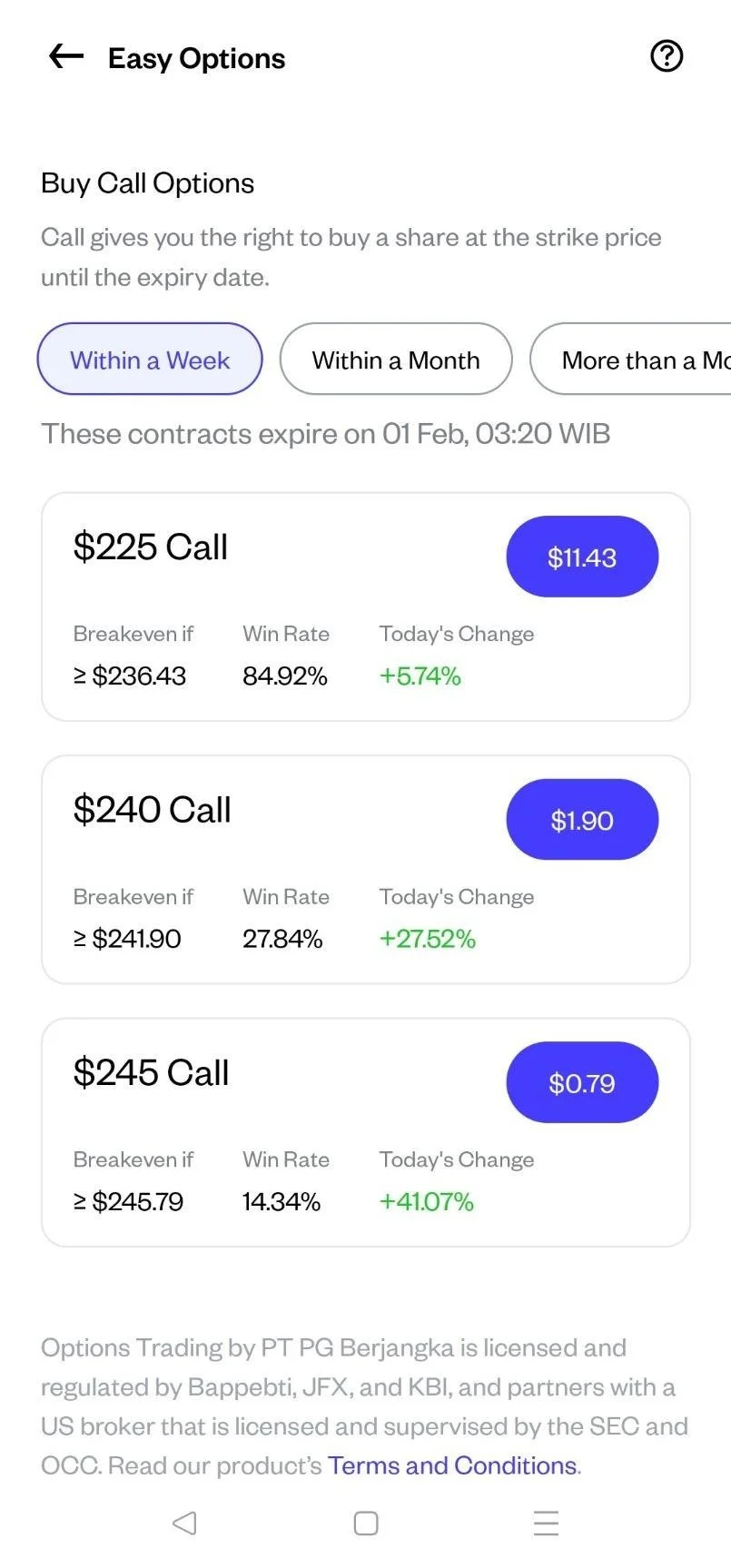
- Within a Month
- Week 1 Friday
- Week 2 Friday
- Week 3 Friday
More than a month
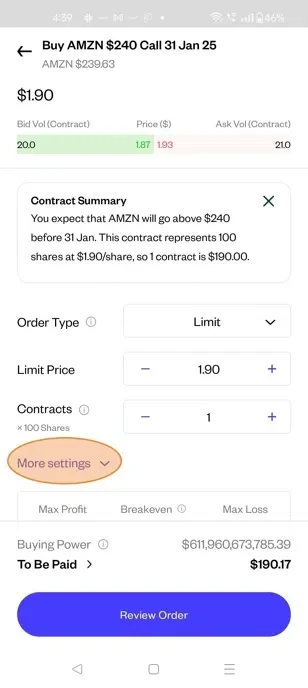
Select the "Order type
- Limit - Trigger a buy order when the price falls to a specified price or lower
- Stop-Limit Order - Trigger a limit buy order when the price rises to a specified price or higher.
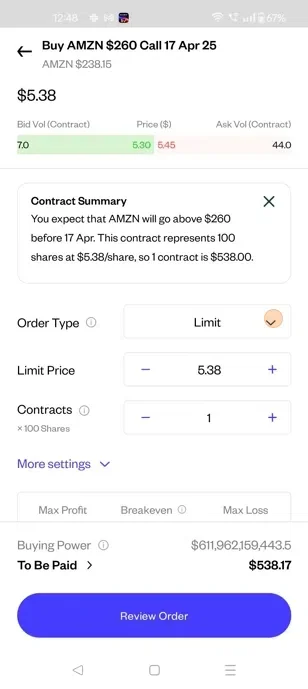
Select "More setting" to add Take Profit and/or Stop Loss to the contract
Step
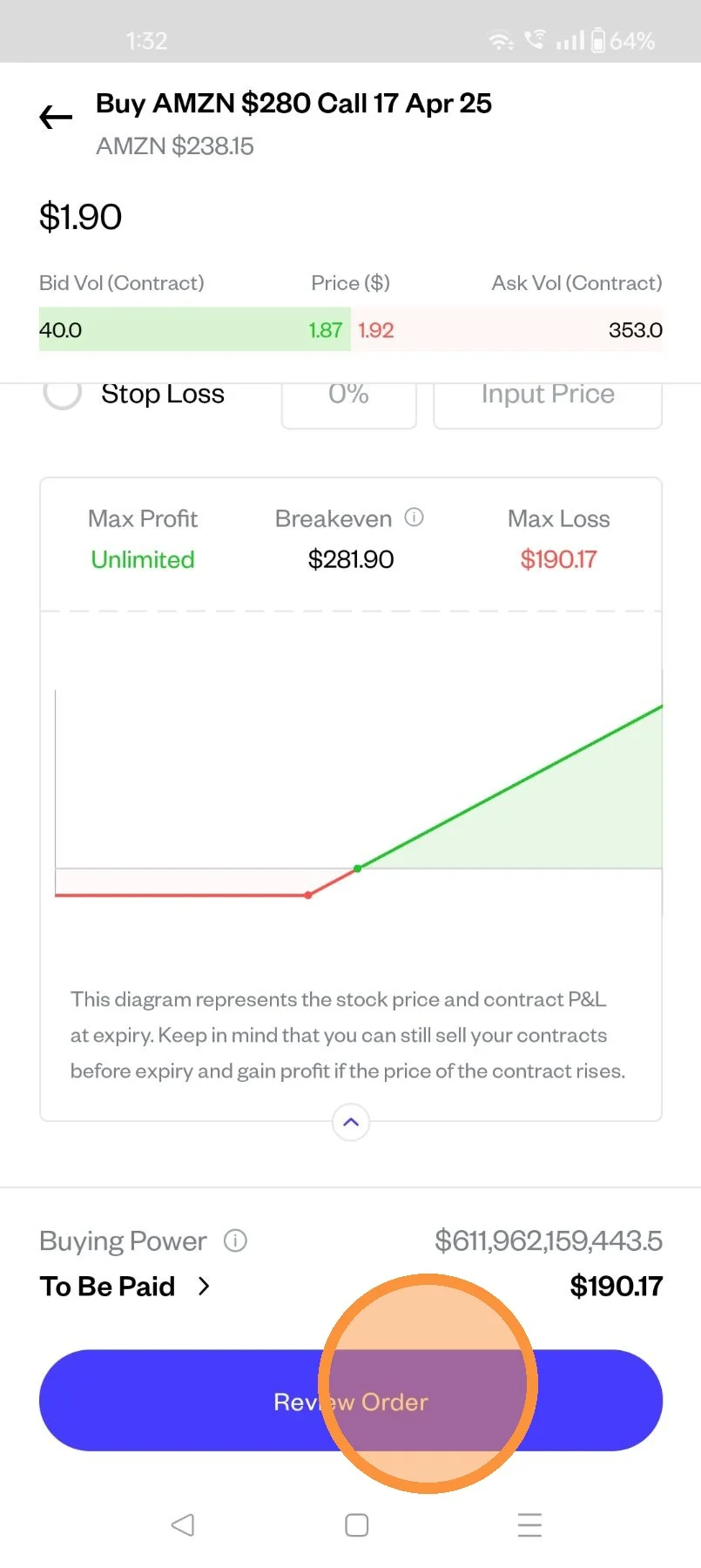
Click "Review Order"
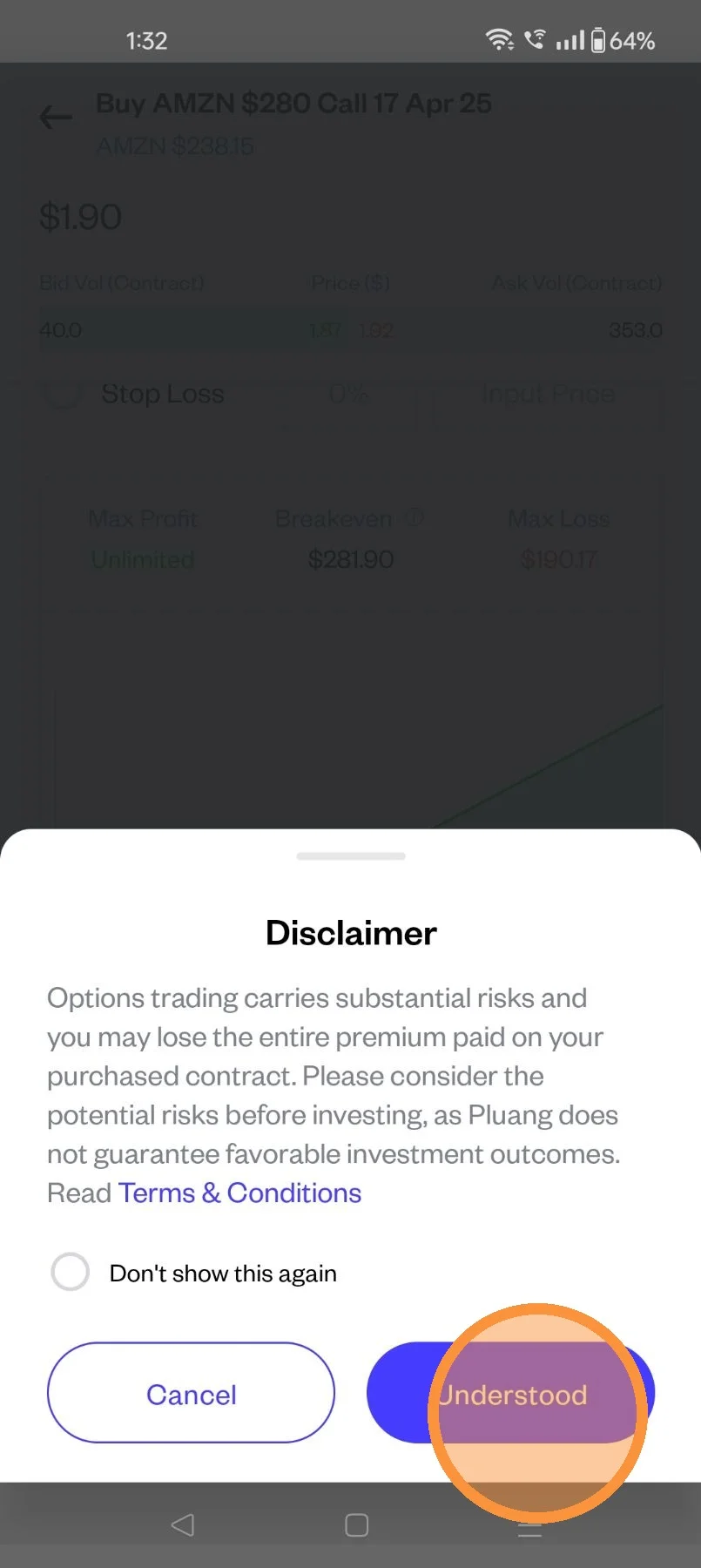
Accept Disclaimer
Click on "Place Order", You order has been successfully placed.
Tap here.