How to Change Phone Number
11 Steps
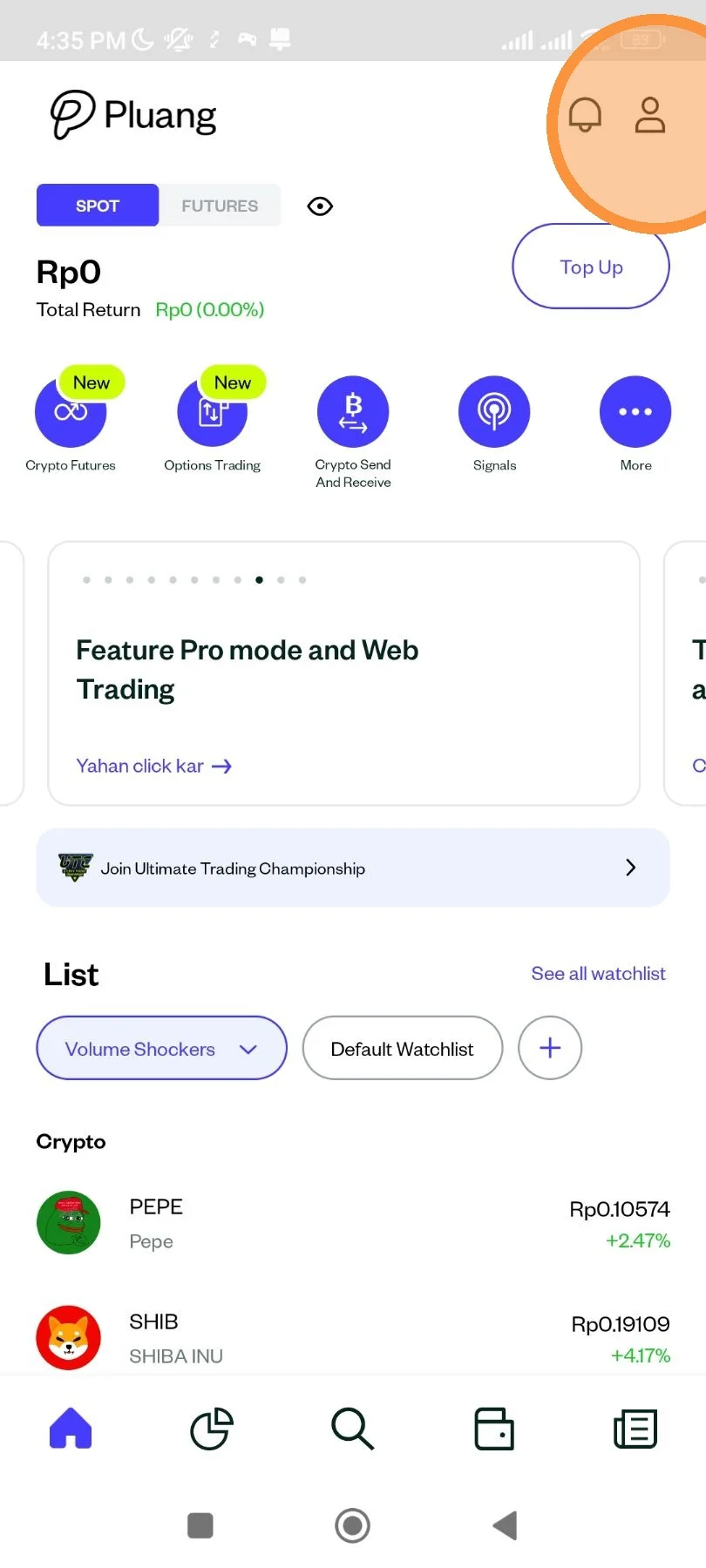
On Pluang app homepage, tap "Account" icon.
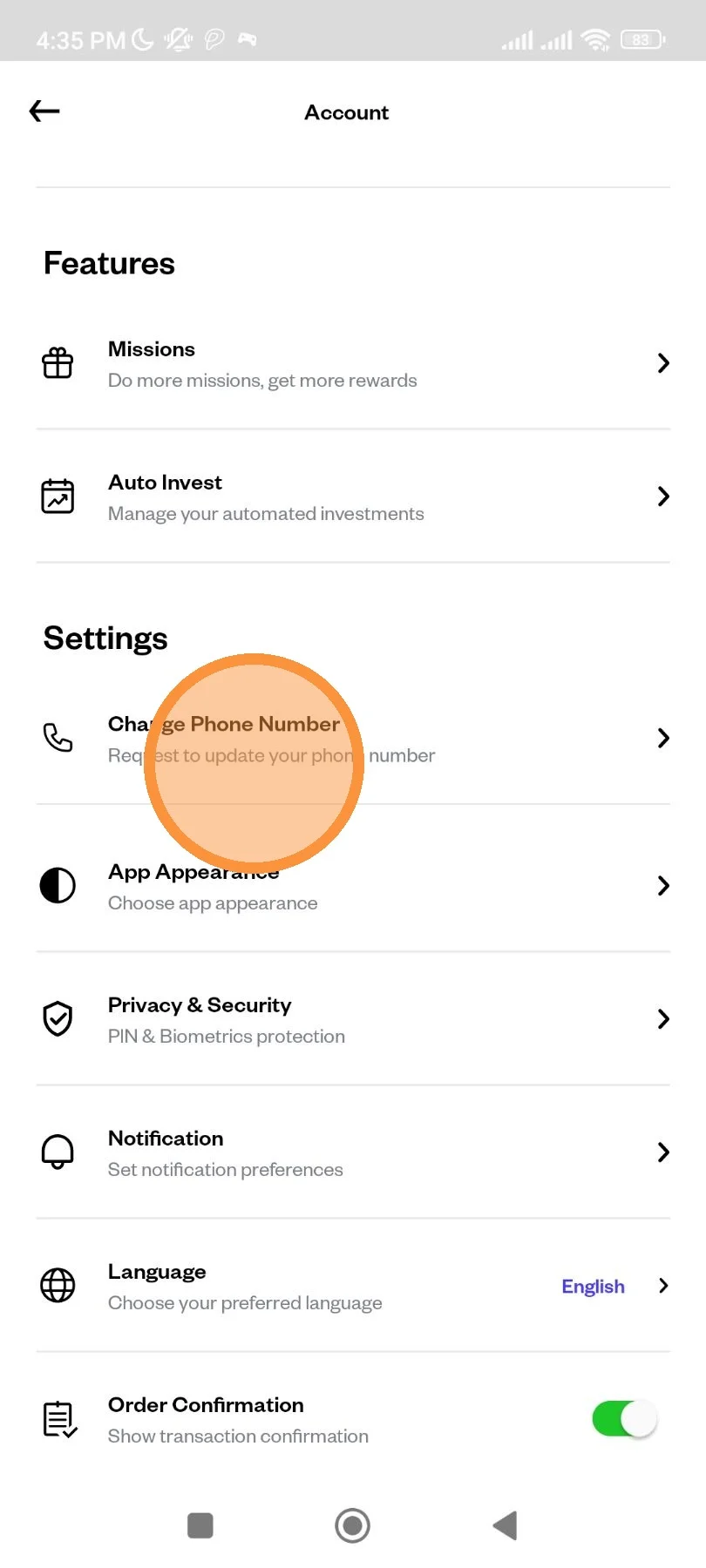
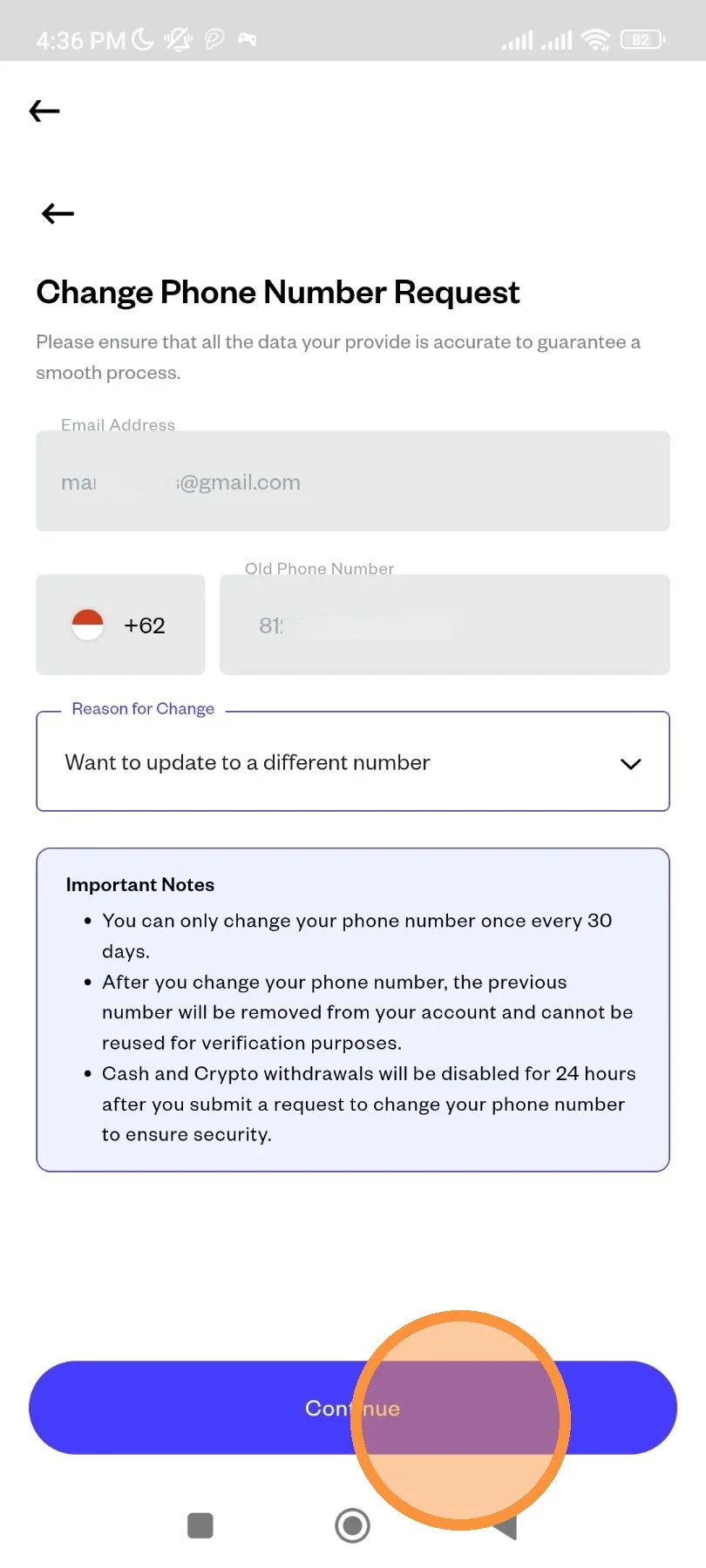
Scroll down until Settings menu and tap "Change Phone Number".
Choose the reason you want to change your phone number.
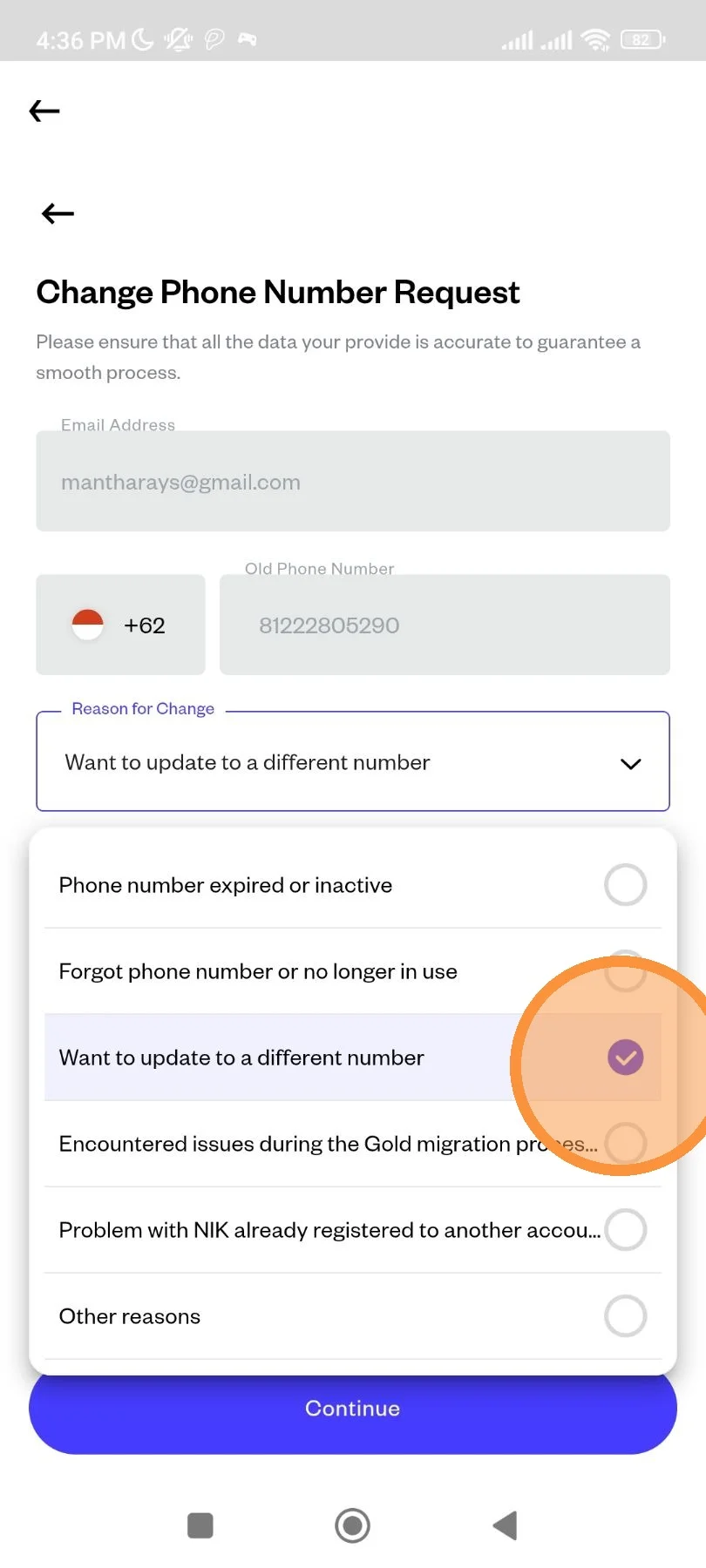
Tap "Continue".
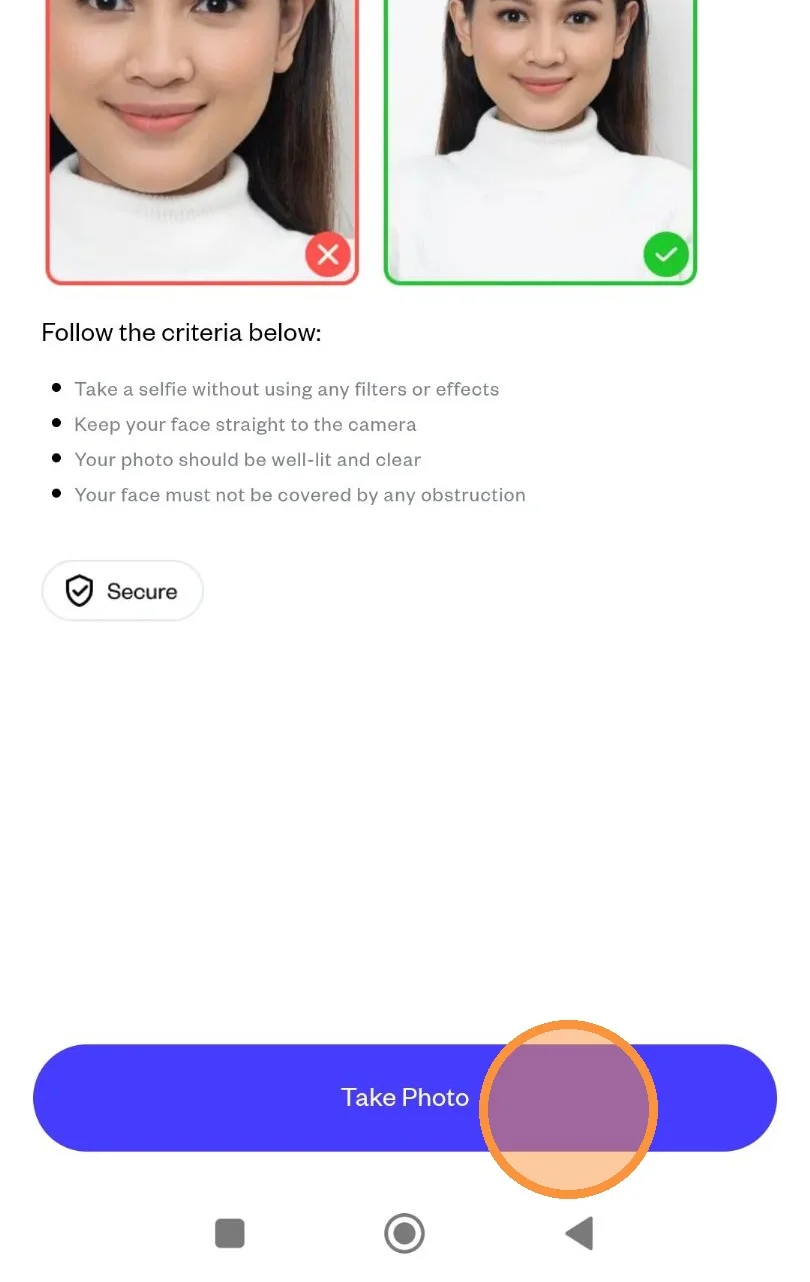
You will be redirected to take selfie. Please read the instruction on accepted selfie and tap "Take Photo" when you're ready.
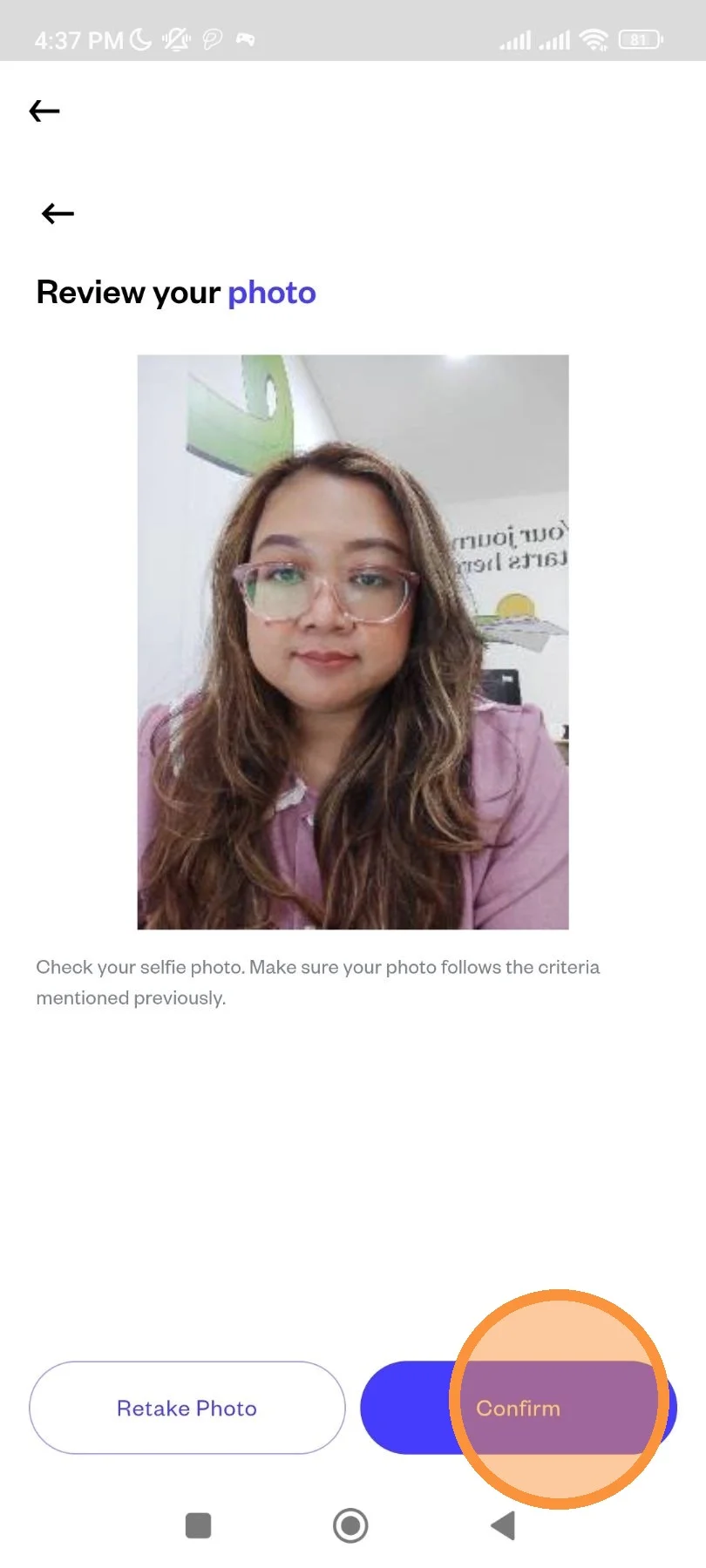
Take self-portrait picture and then tap "Submit" to submit the picture.
The system will verify your selfie.
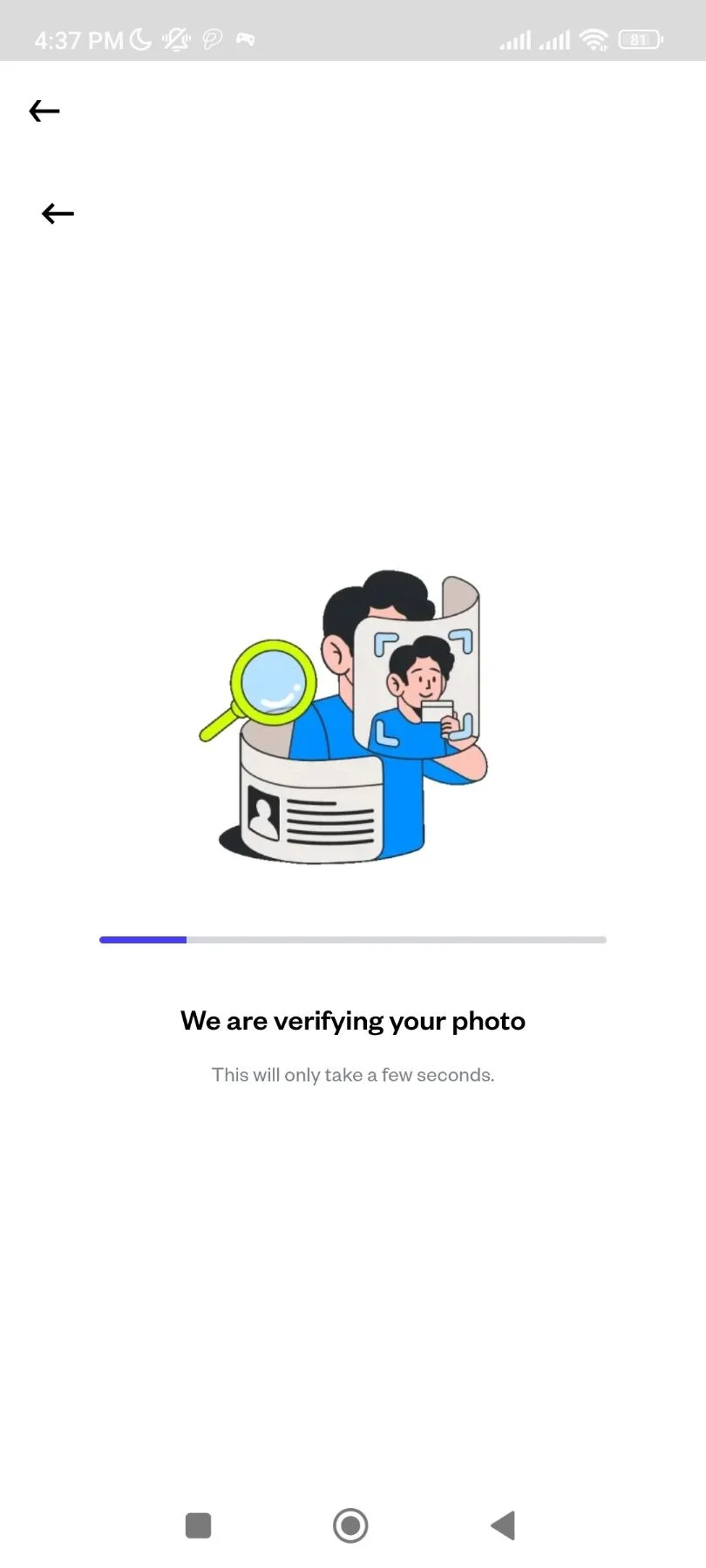
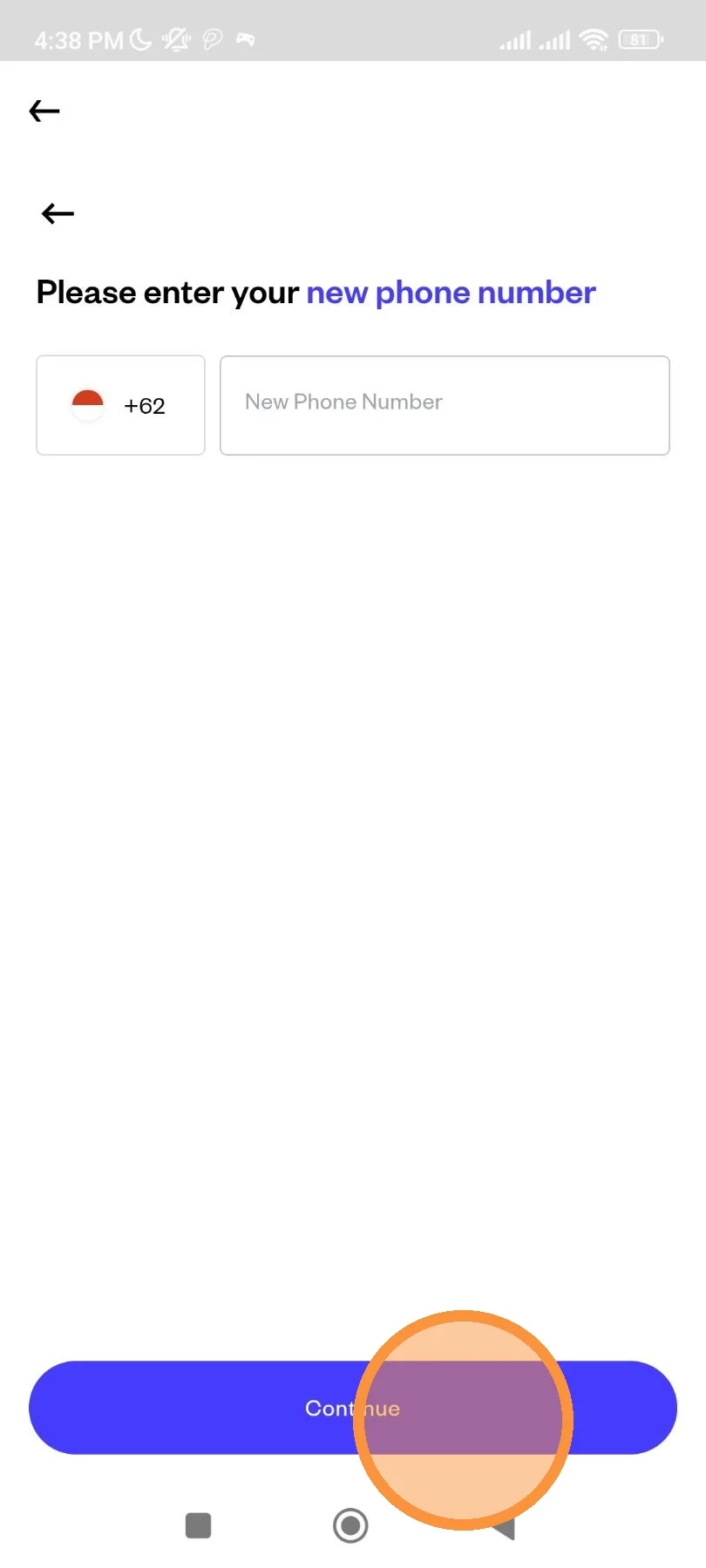
If your selfie is approved, you will then need to input your new phone number. If no, you need to retake your selfie. Click "Continue" after filling your new phone number.
Make sure that you never use this number before on any of Pluang account.
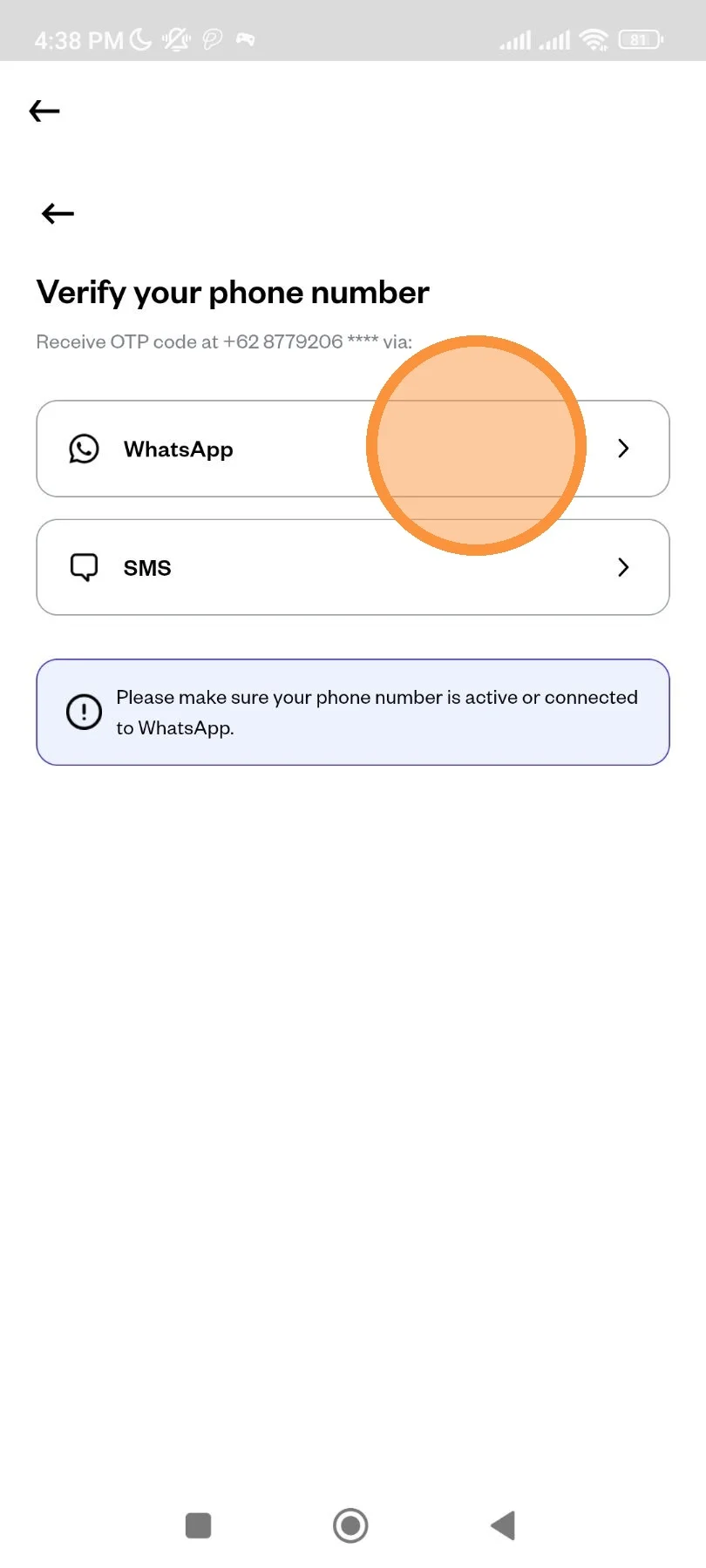
Choose which method you want to receive OTP.
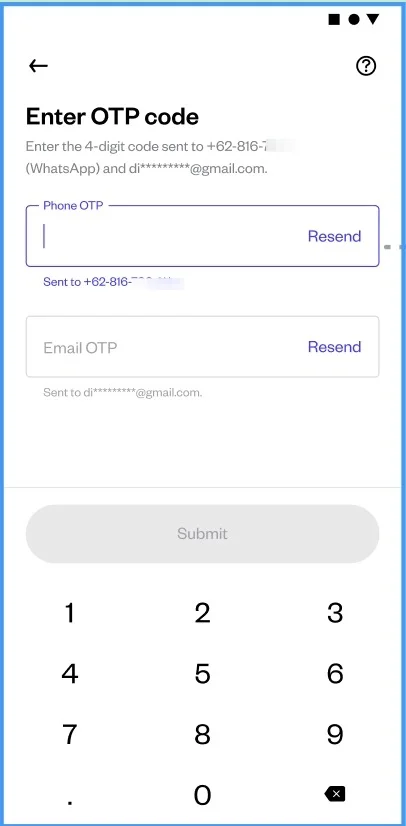
Enter the OTP sent to your WhatsApp or SMS, and email address.
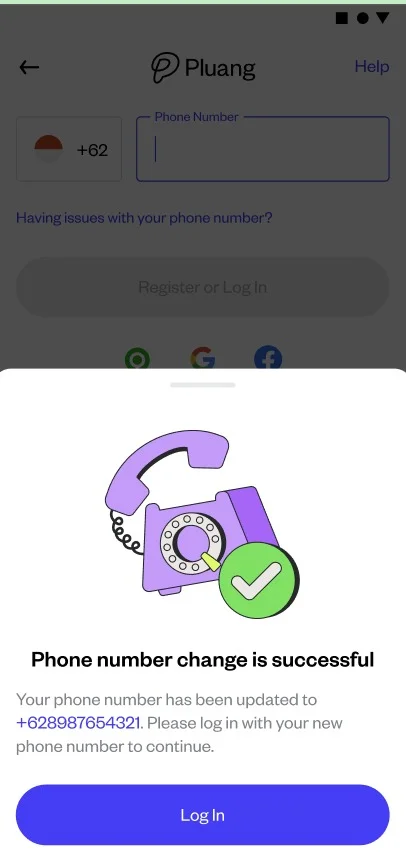
Congratulations! You have successfully changed your phone number.
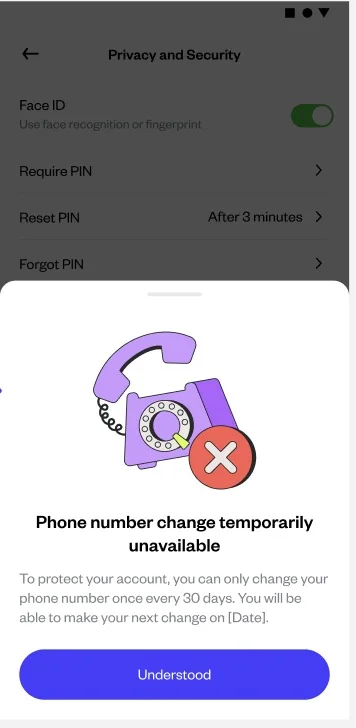
Alert!
You could only change your phone number once every 30 days. If you change again in less than 30 days, you will get this notification. Please contact Customer Service for further assistance.